Docs / Connectors / Microsoft Azure
Microsoft Azure Connector
The ASAPIO Integration Add-on connects SAP S/4HANA and SAP ECC directly to Microsoft Azure messaging and storage services — without middleware. Business events are published in real time to Azure Service Bus, Azure Event Hubs, Azure Event Grid, Azure Data Lake Storage Gen2 (ADLS), or Azure Blob Storage using REST. Unlike database-layer integrations, ASAPIO uses native SAP application-layer integration for full control over data and workload.
Overview
| Component | Type |
|---|---|
| ASAPIO Integration Add-on – Framework | Base component (required) |
| ASAPIO Integration Add-on – Connector for Microsoft® Azure® | Additional package |
Prerequisites
An active Microsoft Azure subscription and appropriate permissions to create App Registrations (for OAuth/MSI) or access policies (for SAS) are required. The SAP application server must have HTTPS connectivity to Azure endpoints.
Microsoft Authorization Setup
The Azure connector supports three authentication methods. Not every method is available for all Azure services:
| Service | OAuth 2.0 | Managed Identity (MSI) | SAS |
|---|---|---|---|
| Service Bus | ✓ | ✓ | ✓ |
| Event Hubs | ✓ | ✓ | ✓ |
| Event Grid | — | — | ✓ |
| Data Lake Storage | ✓ | — | ✓ |
OAuth 2.0
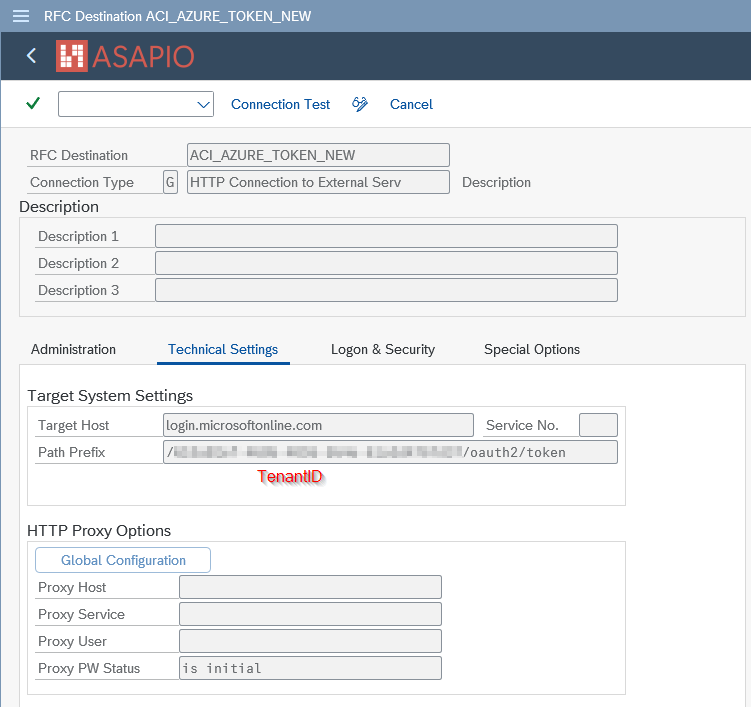
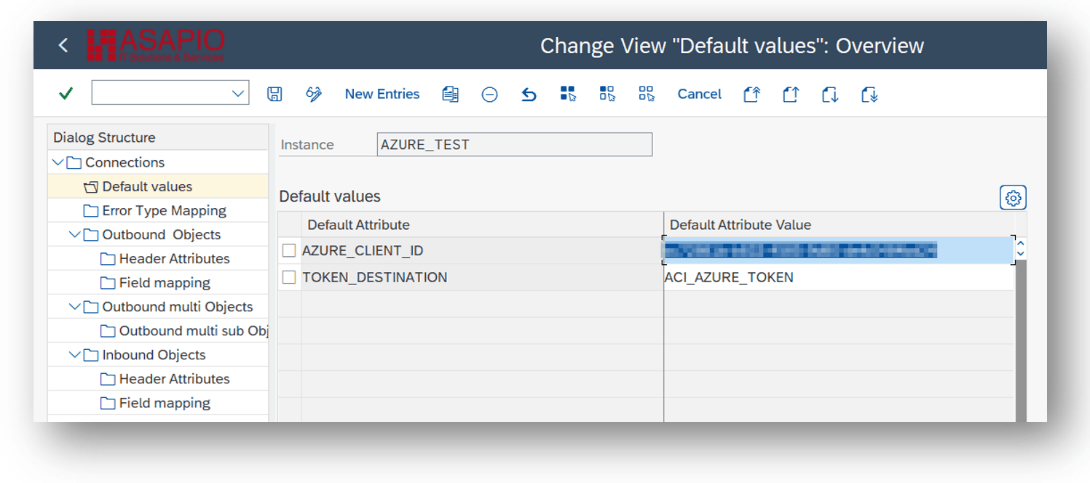
OAuth 2.0 uses an Azure App Registration. A token is fetched from the Microsoft identity platform and cached until expiry. Configure an RFC destination pointing to login.microsoftonline.com with path prefix <tenantID>/oauth2/token.
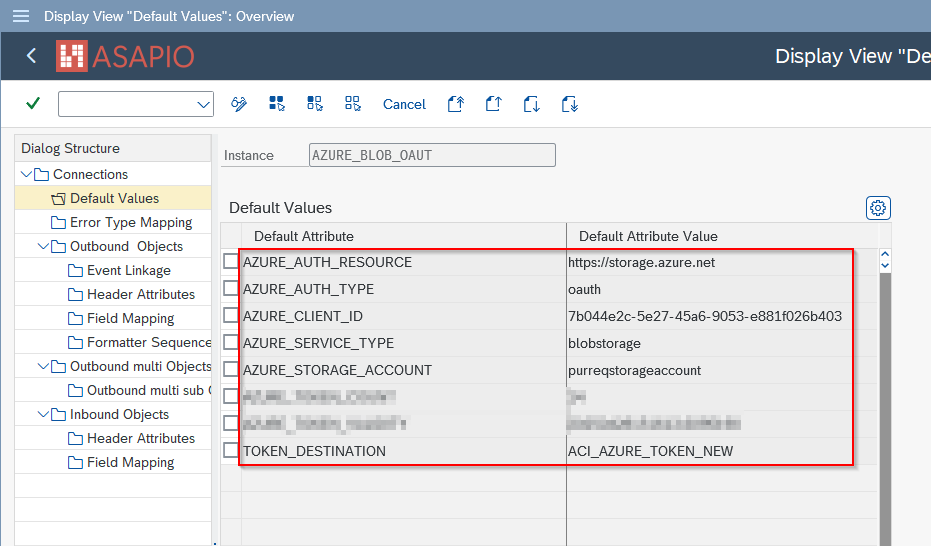
Required default attributes on the connection instance:
| Default Attribute | Value / Description |
|---|---|
AZURE_CLIENT_ID | Application (client) ID from the Azure App Registration |
TOKEN_DESTINATION | RFC destination name for the OAuth token endpoint (login.microsoftonline.com) |
AZURE_AUTH_RESOURCE | Optional — OAuth resource/audience override (e.g., https://servicebus.azure.net/.default) |
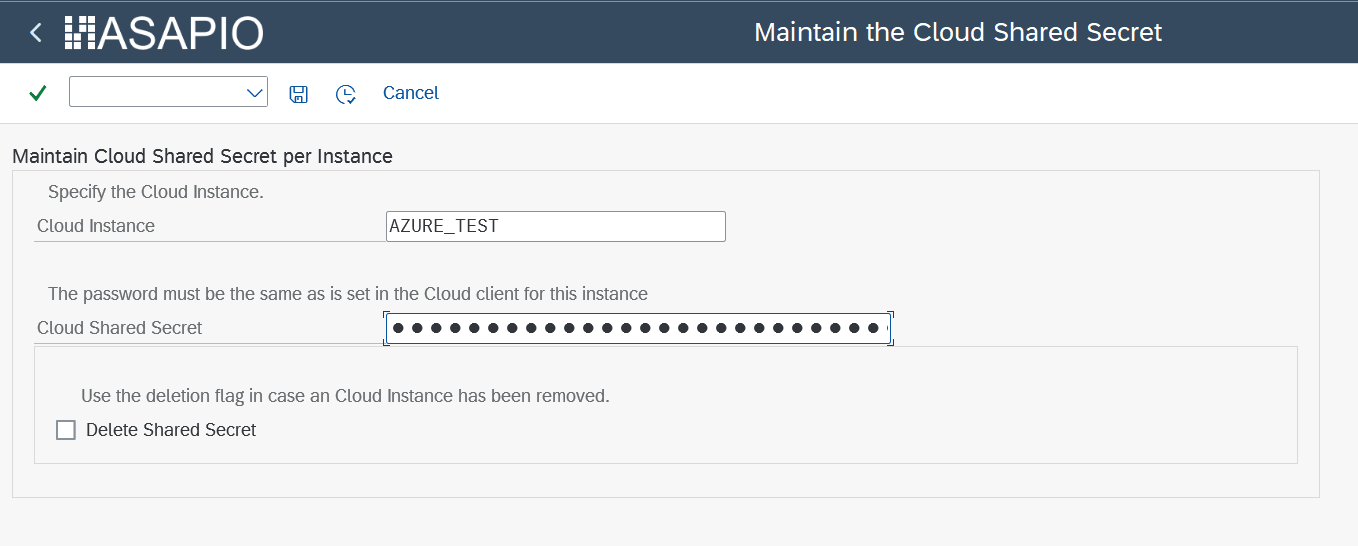
Store the client secret in the SAP Secure Store (transaction /ASADEV/SCI_TPW). The client secret is never stored in the connection defaults.
Shared Access Signature (SAS)
SAS authentication uses a namespace-level or entity-level SAS key.
| Default Attribute | Value / Description |
|---|---|
AZURE_KEY_NAME | SAS policy name (e.g., RootManageSharedAccessKey) |
AZURE_NAMESPACE | Azure namespace hostname (e.g., myns.servicebus.windows.net) |
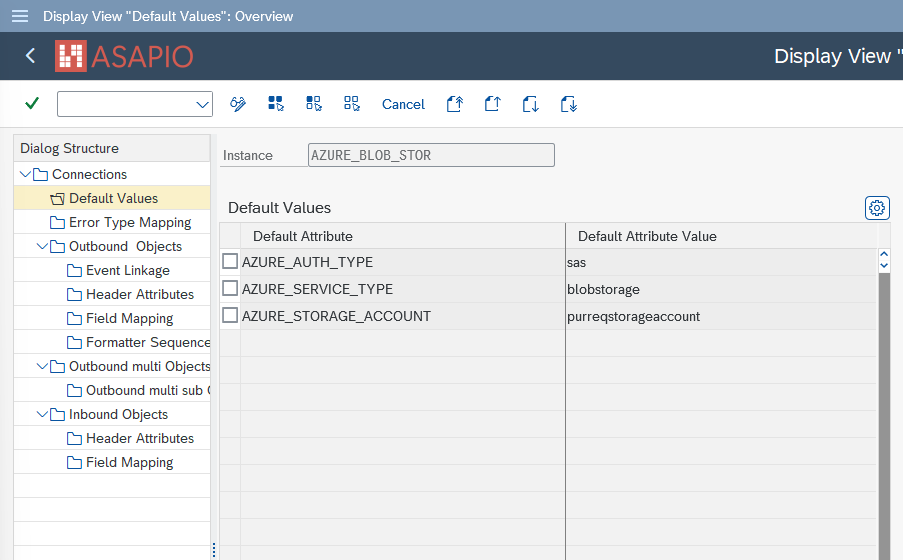
Store the SAS key value in the SAP Secure Store (transaction /ASADEV/SCI_TPW).
Managed Identity (MSI)
Managed Identity is supported when SAP runs on an Azure virtual machine with a system-assigned or user-assigned managed identity. No client secret is required.
| Default Attribute | Value |
|---|---|
AZURE_AUTH_TYPE | MANAGED_IDENTITY |
AZURE_SERVICE_TYPE | Target service (e.g., servicebus) |
TOKEN_DESTINATION | RFC destination for the MSI token endpoint |
SAP Connection Setup (in SAP Gui)
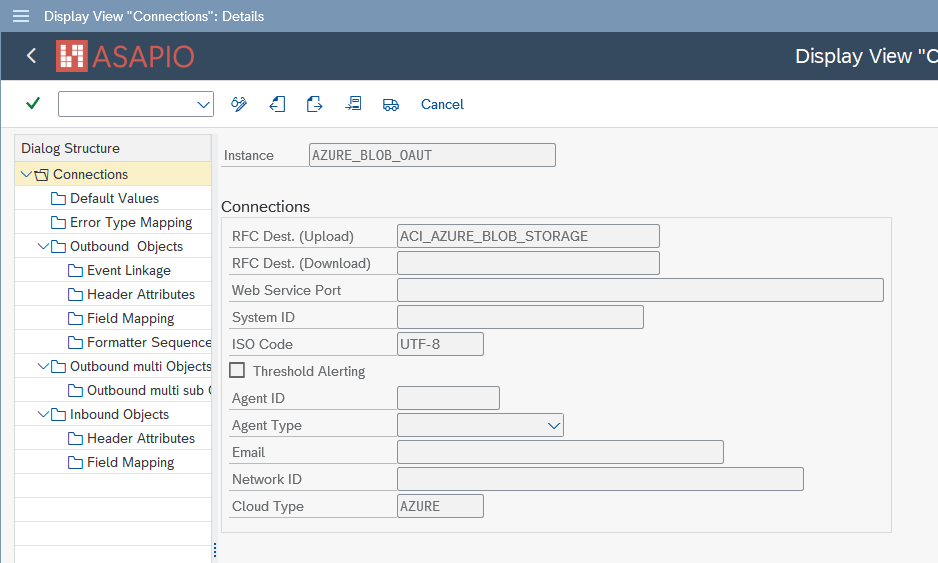
The connection setup in SAP GUI is a required first step for all configuration paths. This creates the RFC destination, imports the SSL certificate, activates the BC-Set, and registers the connection instance that both Event Studio and SAP GUI-based event configuration rely on.
Step 1 — Create RFC Destination (SM59)
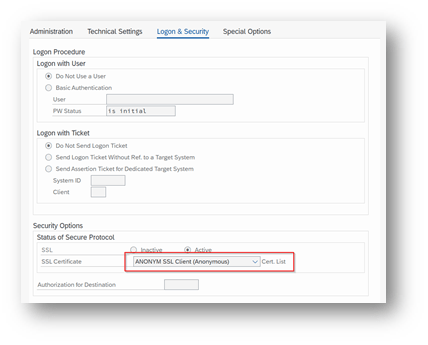
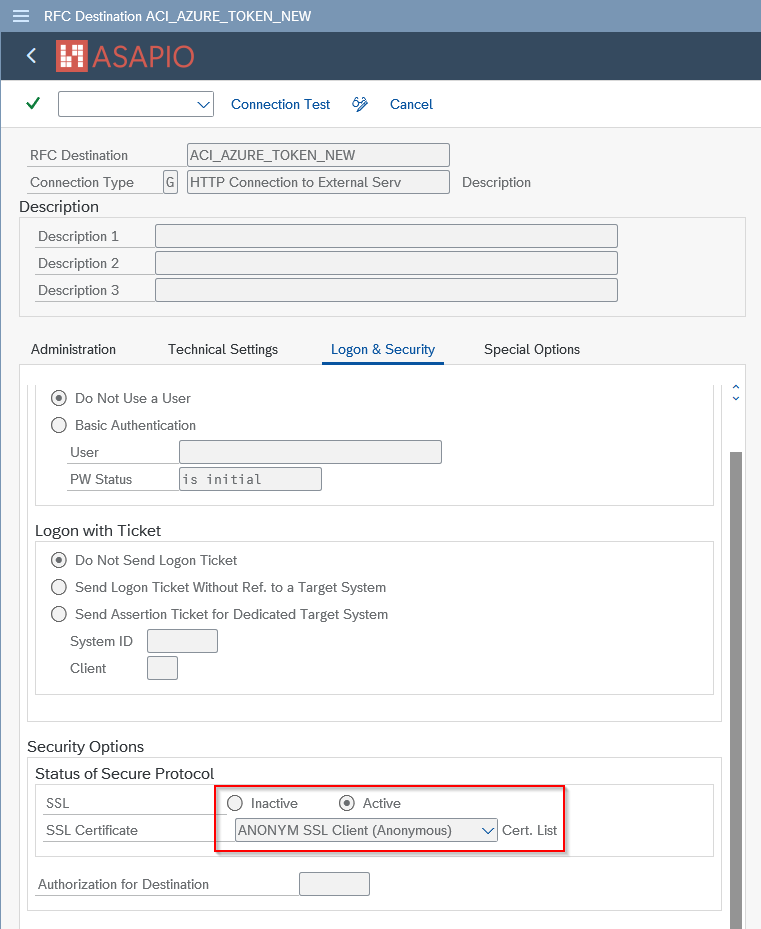
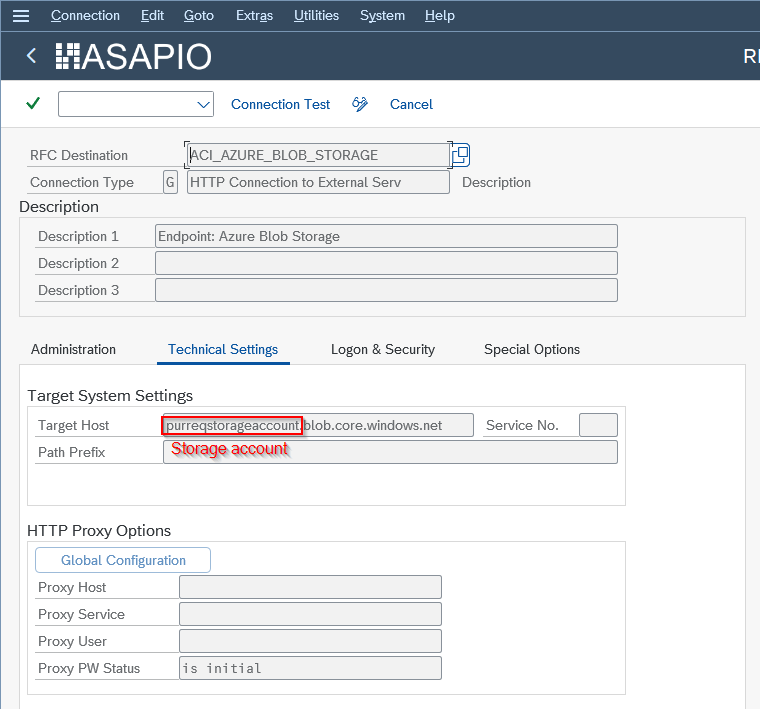
Create an HTTP connection of type G to the Azure service endpoint (e.g., myns.servicebus.windows.net). On the Logon & Security tab, enable SSL.
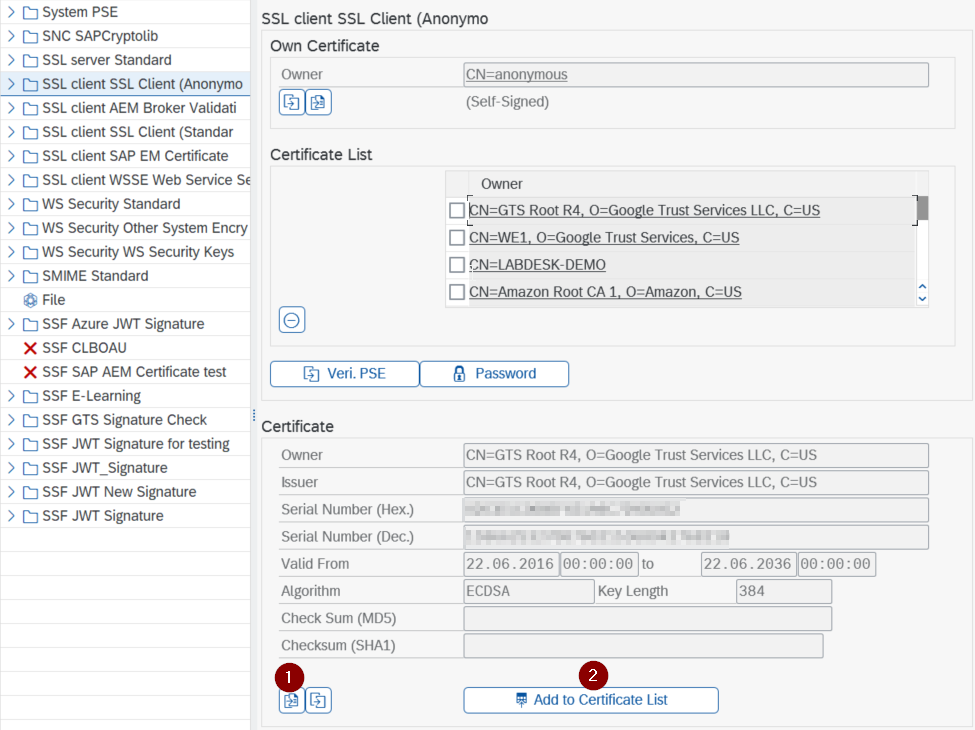
Step 2 — Import SSL Certificate (STRUST)
In transaction STRUST, import the Azure TLS certificate into the SSL Client Certificate list and add it to the Certificate List.
Step 3 — Import BC-Set (SCPR20)
Import the ASAPIO Azure framework BC-Set to activate the cloud adapter configuration and codepage definitions:
- BC-Set:
/ASADEV/ACI_BCSET_FRAMEWORK_AZ
Step 4 — Configure Cloud Adapter
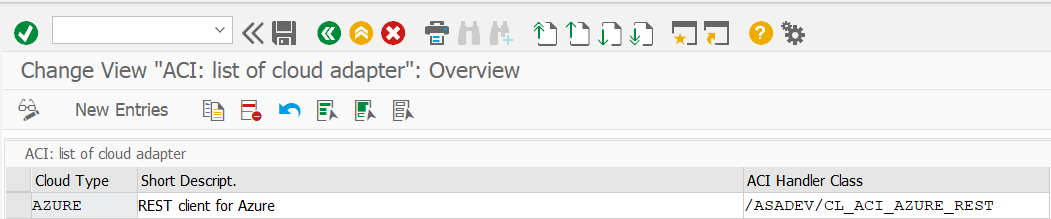
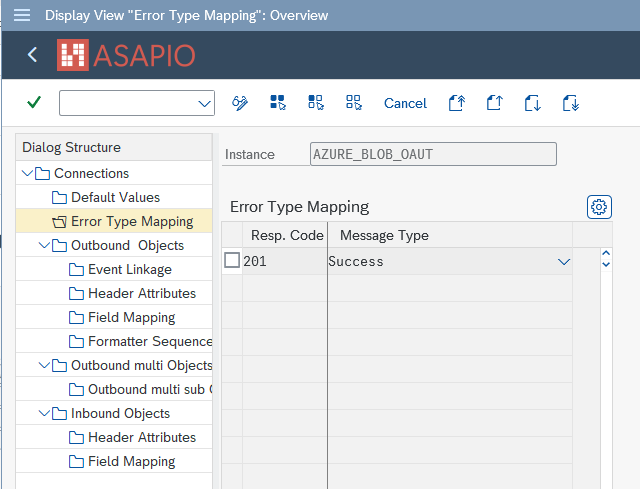
In SPRO → ASAPIO Cloud Integrator → Maintain Cloud Adapter, set:
- Cloud Type:
AZURE - ACI Handler Class:
/ASADEV/CL_ACI_AZURE_REST - Error Mapping: HTTP 201 → Success, HTTP 202 → Success
Step 5 — Create Connection Instance
In transaction /ASADEV/ACI_SETTINGS, create a connection instance and link it to the RFC destination. Set the authentication default values appropriate to your auth method (OAuth, SAS, or MSI — see the Authentication section above).
Create an outbound interface (Event Studio)
Prerequisite: The connection instance must already be set up in SAP GUI (see SAP Connection Setup (in SAP Gui) above) before Event Studio can be used to configure events.
Event Studio is the recommended web-based interface for creating and managing events. To configure an Azure event:
- Open Event Studio and select the backend SAP system.
- Go to the Data Catalog to find the data object to stream.
- In the Available Standard Events table, click Deploy, or use Create to define a new event.
- Select the Azure connection from the Connection dropdown — the Header Fields table auto-populates with the connection's default attributes.
- Add the mandatory per-service header attributes for the target Azure service (see per-service sections below).
- Save and activate the event.
For service-specific header attribute configuration, see: Azure Service Bus, Event Hubs, Event Grid, Data Lake Storage, or Blob Storage.
Create an outbound interface (SAP Gui)
All outbound methods are available for Azure targets:
| Method | Extraction FM | Formatting FM |
|---|---|---|
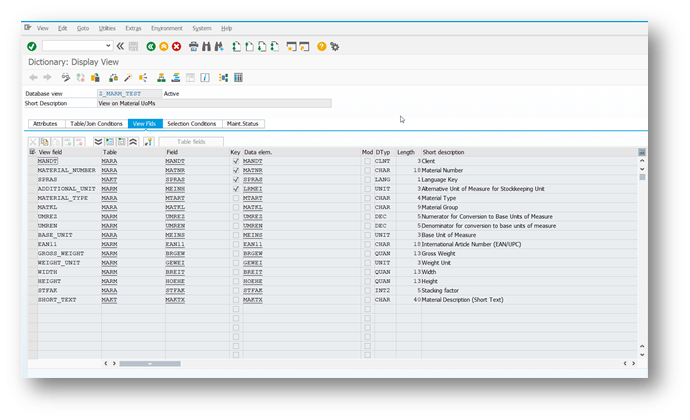
| Simple Notify | /ASADEV/ACI_SIMPLE_NOTIFY | — |
| Message Builder | /ASADEV/ACI_GEN_VIEW_EXTRACTOR | /ASADEV/ACI_GEN_VIEW_FORM_CB |
| Packed Load | /ASADEV/ACI_GEN_VIEW_EXT_PACK | /ASADEV/ACI_GEN_VIEW_FORM_CB |
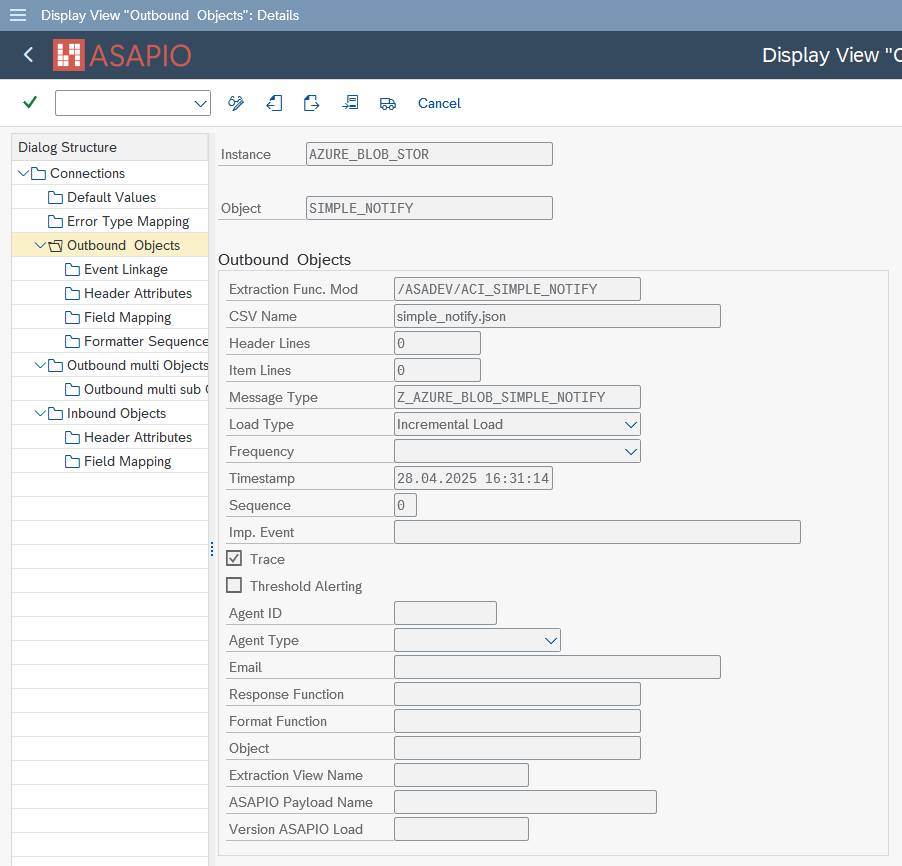
Create Outbound Object
In transaction /ASADEV/68000202, select the connection instance, add an entry under Outbound Objects, and configure the method, message type, and response function. Then add the service-specific header attributes under the Header Attributes tab.
Event Linkage (SWE2)
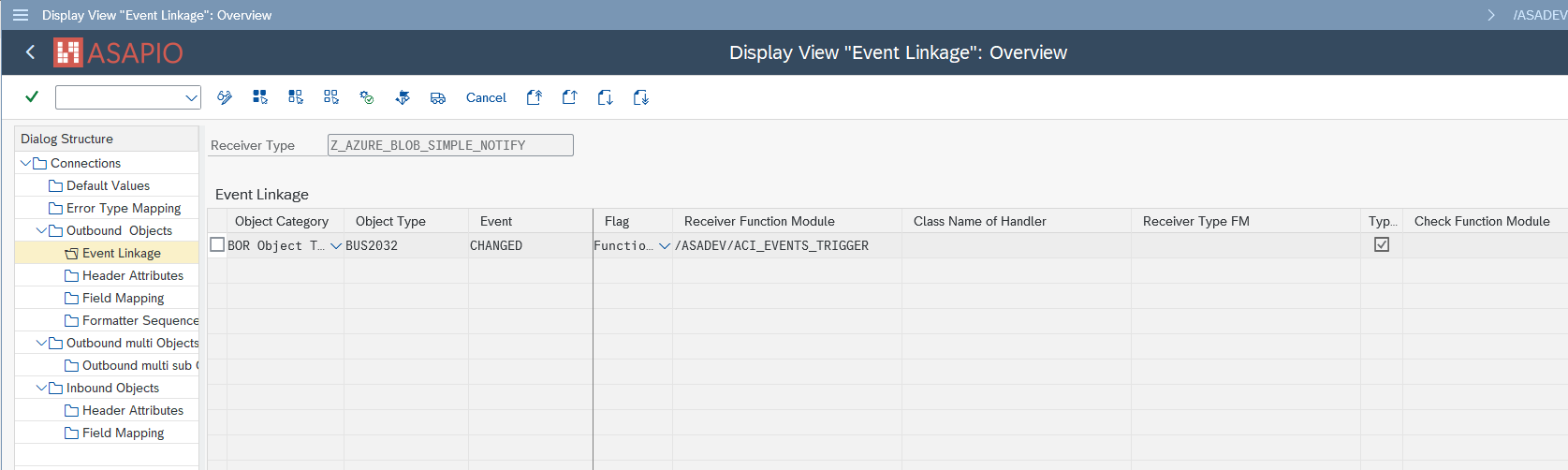
Register the event trigger in transaction SWE2:
- Receiver Function Module:
/ASADEV/ACI_EVENTS_TRIGGER - Tick Type linkage Activated
Packed Load — Header Attributes
For Packed Load, configure these additional header attributes:
| Attribute | Description | Example |
|---|---|---|
ACI_PACK_TABLE | Table for key fields (typically the header table) | MARA |
ACI_PACK_SIZE | Records per delivery package | 500 |
ACI_PACK_KEY_LENGTH | Total length of key fields | 13 |
ACI_PACK_WHERE_COND | Optional WHERE condition on ACI_PACK_TABLE | — |
ACI_PACK_RETRY_TIME | Seconds before retrying server group resource acquisition | 300 |
ACI_PACK_BDCP_COMMIT | Generate change pointers per entry (~50% performance impact) | X |
For service-specific header attribute configuration, see: Azure Service Bus, Event Hubs, Event Grid, Data Lake Storage, or Blob Storage.
Azure Service Bus
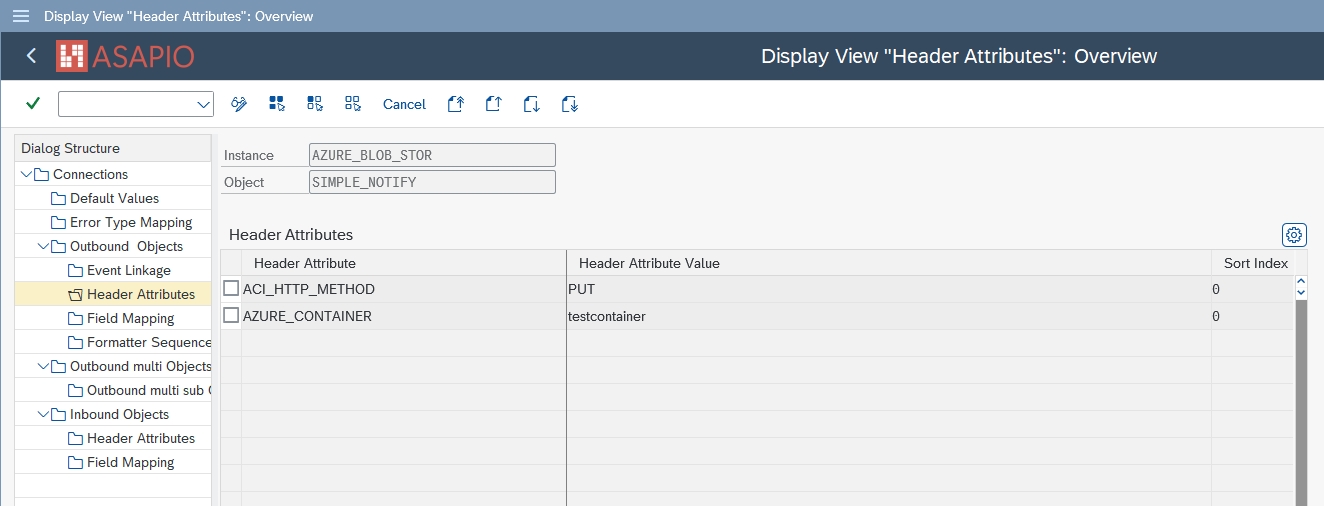
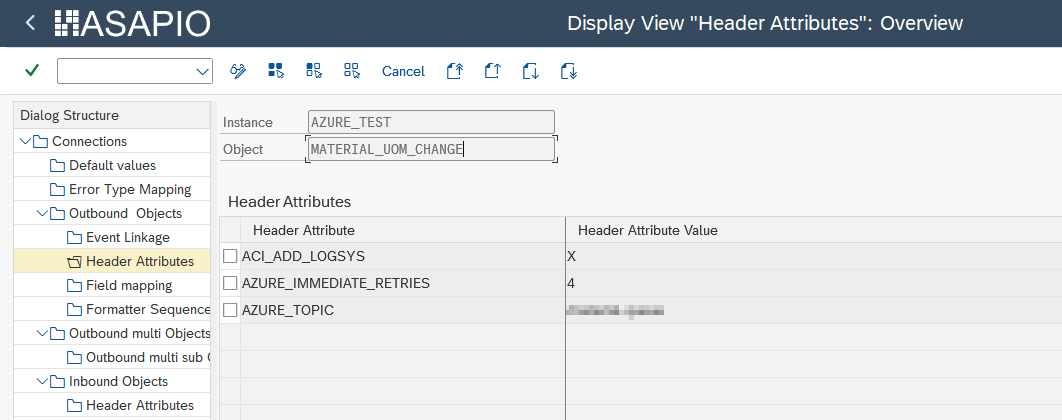
Supported auth methods: OAuth 2.0, Managed Identity, SAS. Configure the following header attributes on the outbound object:
| Header Attribute | Value / Description | Required |
|---|---|---|
AZURE_SERVICE_TYPE | servicebus | Yes |
AZURE_AUTH_TYPE | Authentication method: oauth, MANAGED_IDENTITY, or sas | Yes |
AZURE_TOPIC | Queue or topic name in the Service Bus namespace | Yes |
AZURE_IMMEDIATE_RETRY | Number of immediate retries on failure (default: 2) | Optional |
Azure Event Hubs
Supported auth methods: OAuth 2.0, Managed Identity, SAS. Configure the following header attributes:
| Header Attribute | Value / Description | Required |
|---|---|---|
AZURE_SERVICE_TYPE | eventhub | Yes |
AZURE_AUTH_TYPE | Authentication method: oauth, MANAGED_IDENTITY, or sas | Yes |
AZURE_TOPIC | Event Hub name | Yes |
AZURE_IMMEDIATE_RETRY | Number of immediate retries on failure (default: 2) | Optional |
Azure Event Grid
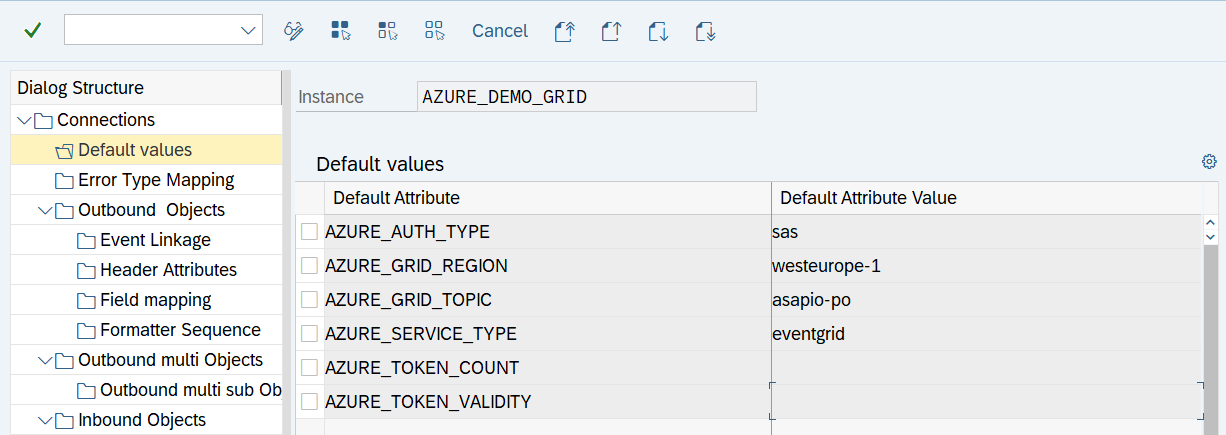
Supported auth methods: SAS only. Configure the following header attributes:
| Header Attribute | Value / Description | Required |
|---|---|---|
AZURE_SERVICE_TYPE | eventgrid | Yes |
AZURE_AUTH_TYPE | sas | Yes |
AZURE_GRID_REGION | Azure region of the Event Grid topic (e.g., germanywestcentral) | Yes |
AZURE_GRID_TOPIC | Event Grid custom topic name | Yes |
Azure Data Lake Storage Gen2 (ADLS)
Supported auth methods: OAuth 2.0, SAS. Configure the following header attributes:
| Header Attribute | Value / Description | Required |
|---|---|---|
AZURE_SERVICE_TYPE | datalake | Yes |
AZURE_AUTH_TYPE | oauth or sas | Yes |
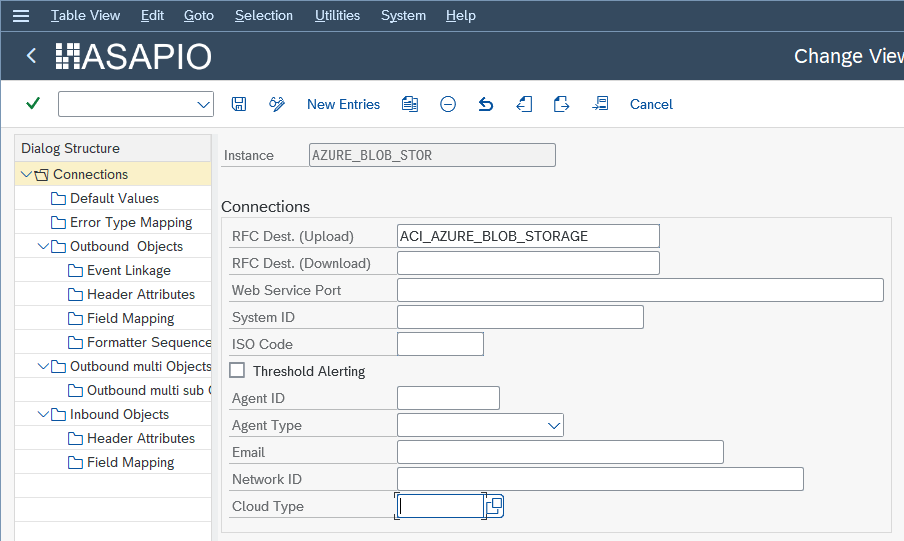
AZURE_STORAGE_ACCOUNT | ADLS storage account name | Yes |
AZURE_CONTAINER | Container (filesystem) name in the storage account | Yes |
Azure Blob Storage
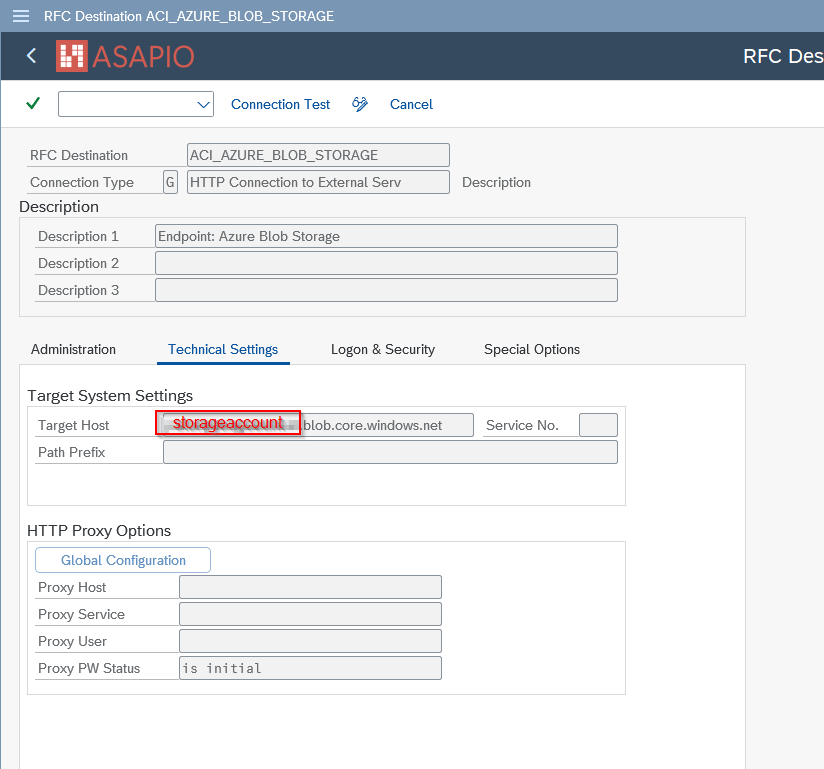
Configure the following header attributes for Blob Storage targets:
| Header Attribute | Value / Description | Required |
|---|---|---|
AZURE_SERVICE_TYPE | blobstorage | Yes |
AZURE_STORAGE_ACCOUNT | Blob storage account name | Yes |
CSV_NAME | Optional file name prefix for files written to Azure Blob Storage. The final file name is composed of the configured CSV Name, a timestamp, and a unique identifier, e.g.: Sales_Order_20260624_111339_c30d9b. If left empty, a default name is generated automatically. | No |
Azure Payload Offloading
Available from release 9.32504. Azure Service Bus and Event Hubs have message size limits. Payload offloading transparently stores large payloads in Azure Blob Storage or ADLS, publishing only a reference URL to the original target. The consuming side retrieves the full payload from storage.
Configure these header attributes to enable offloading:
| Header Attribute | Value / Description |
|---|---|
AZURE_PAYLOAD_OFFLOADING | X — enables payload offloading |
AZURE_PAYLOAD_OFFLOADING_SIZE | Threshold in bytes above which offloading triggers |
AZURE_CONTAINER | Storage container name for offloaded payloads |
AZURE_STORAGE_ACCOUNT | Storage account name |
AZURE_STORAGE_DESTINATION | RFC destination name for the storage endpoint |
AUTH_INSTANCE | Connection instance to use for storage auth (if different from primary) |
AZURE_TOPIC | Queue/topic/hub name for the reference notification |
Inbound Pull (Service Bus)
The Azure connector supports pulling messages from Azure Service Bus queues and delivering them to SAP via IDoc. Configure the following attributes on the inbound object:
| Attribute | Value / Description |
|---|---|
AZURE_QUEUE_NAME | Service Bus queue name to pull from |
AZURE_PULL_DURATION | Total polling duration in seconds per call (default: 60) |
AZURE_PULL_WAIT | Long-poll wait time per request in seconds (default: 3) |
The inbound sample IDoc function module is /ASADEV/ACI_SAMPLE_IDOC_JSON.
Azure Databricks
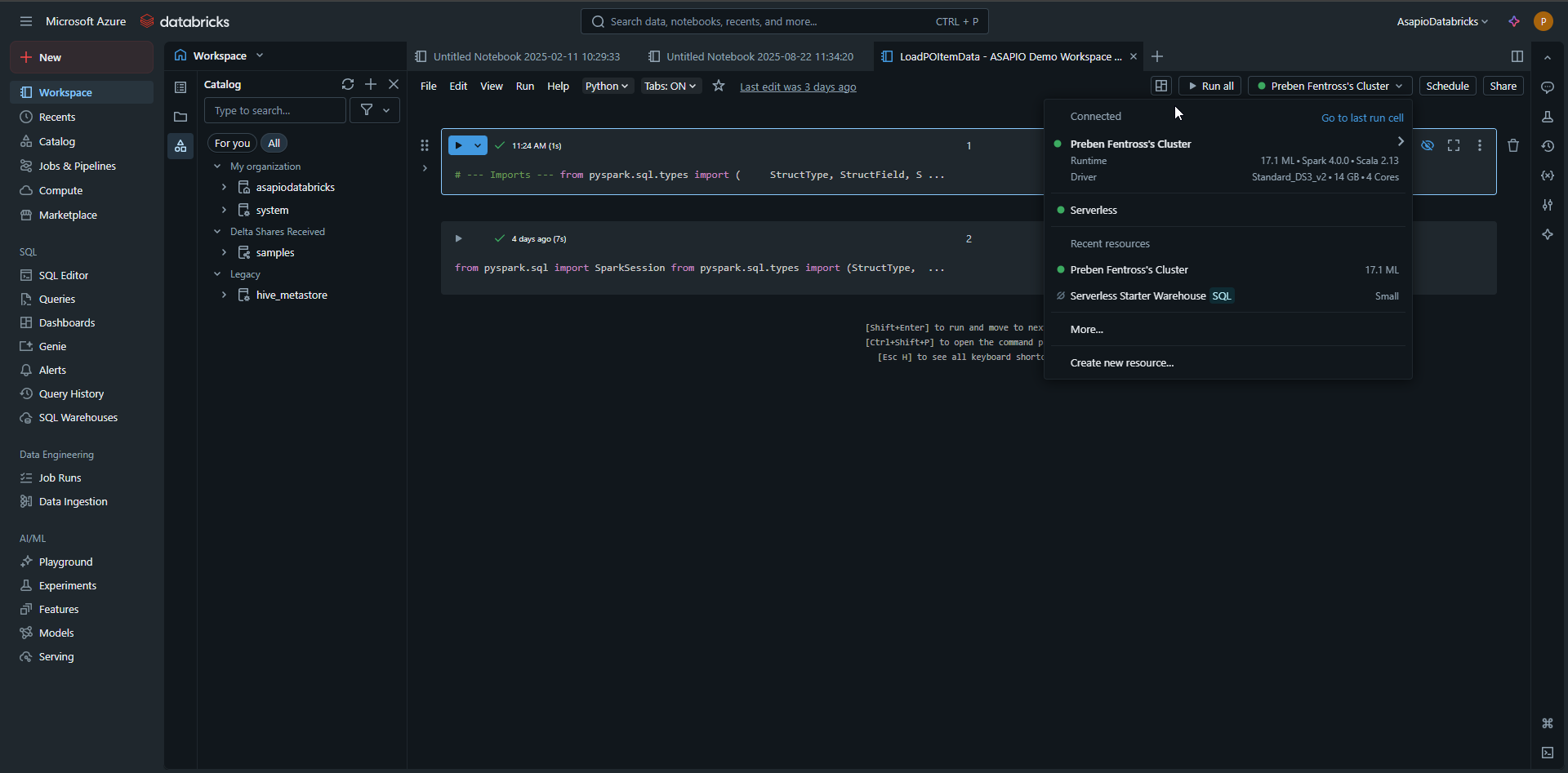
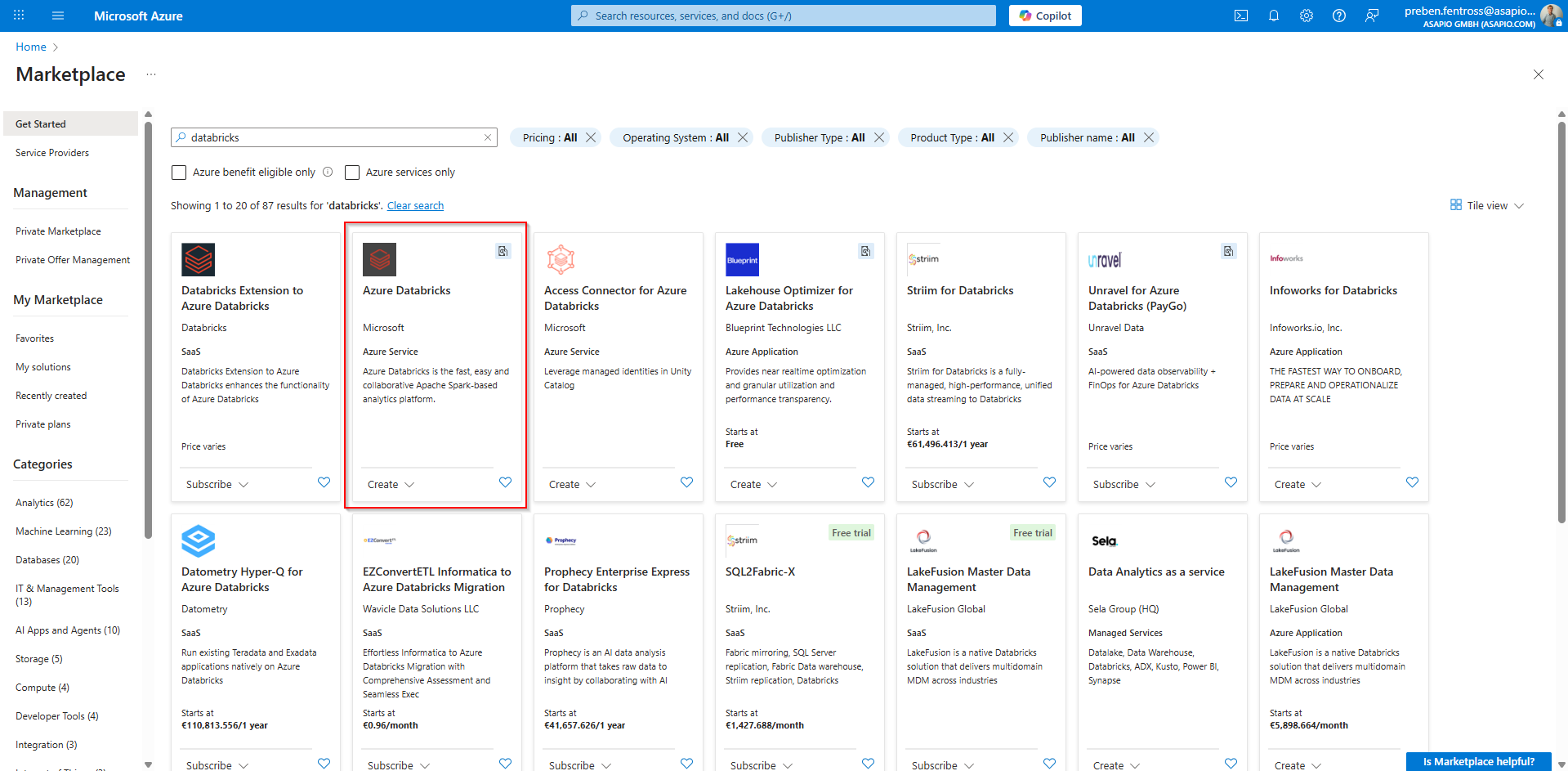
ASAPIO data published to ADLS or Blob Storage can be consumed directly in Azure Databricks notebooks. The connector is available via Azure Marketplace — install the ASAPIO add-on from the Marketplace into your Databricks workspace.
In the Databricks notebook, configure the storage mount using the wasbs:// scheme with your storage account credentials, then access the SAP data files using standard PySpark or Spark SQL.