Docs / Outbound Messaging
Payload Designer
Scope: The SAP GUI Payload Designer flow on this page is applicable for outbound configurations maintained via SAP GUI transactions. For SAP S/4HANA projects, the recommended approach is CDS-based modeling in Event Studio, using the CDS View Builder or another suitable custom CDS view as the payload source.
Via SAP GUI
With the ASAPIO Payload Designer (transaction /n/ASADEV/DESIGN), you define the payload of event messages or batch interfaces through a configuration-only interface, without coding. It comes with a set of pre-delivered ASAPIO payload types and versions, where a version can also mean a different scope of fields or other settings. Once a payload is designed, it can be used in outbound interface definitions — field selection, renaming, value filters, and multi-table joins are all supported.
App Modes/Screens
- The main screen lets you create, copy, or delete Payload Designer Views, and create multiple versions for each View.
- The version screen is opened by double-clicking a specific version on the initial screen. It lets you view and modify that Payload Designer Version.
- The join builder screen lets you add or delete tables and join them with other tables.
For a first impression, watch this HowTo video (4m44s).
Payload Designer Start Screen
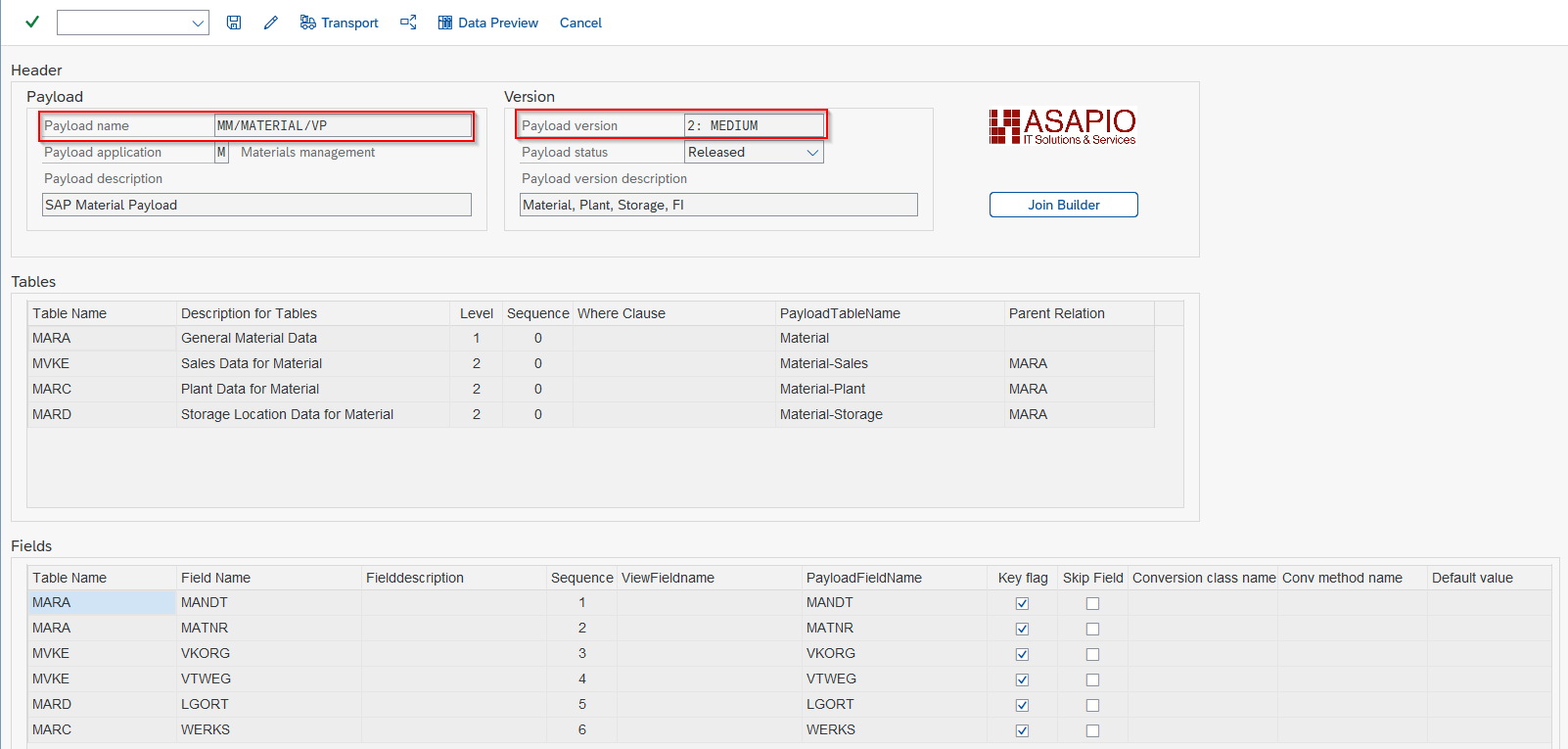
Select the Payload Design to work with. Each Payload Design has one or more Payload Design Versions.
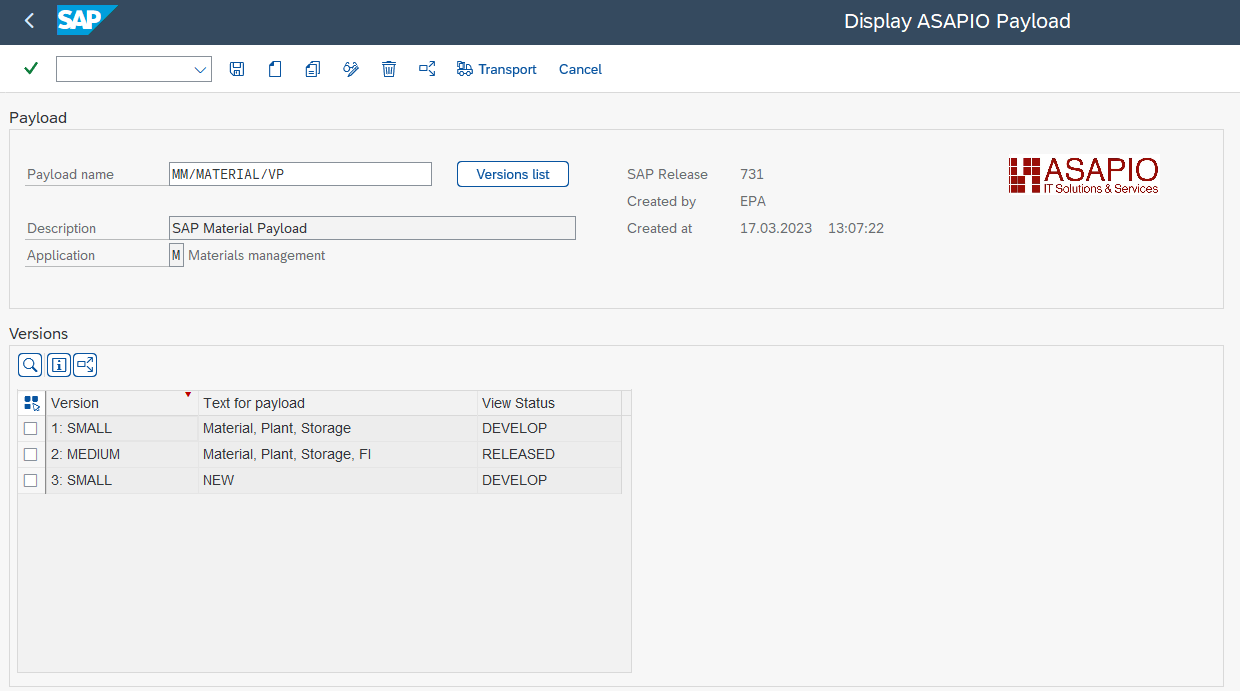
Payload Design Version Screen
Opens when you double-click a version on the start screen. View and modify the tables, fields and join configuration for that version.

Join Builder Screen

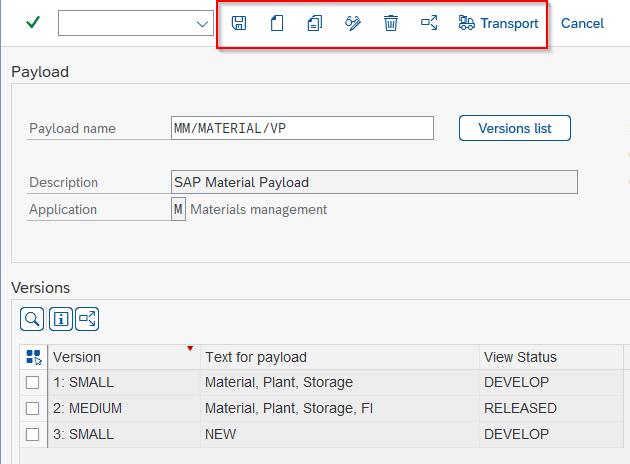
Payload Design Actions
Seven buttons are available on the main screen's application toolbar:
- Save — update values.
- Create — generate a new Payload Design View.
- Copy — copy a Payload Design View, including all its versions.
- Display/Edit — toggle the Payload Designer between display and edit mode.
- Delete — remove the current payload and all its versions (with confirmation).
- Where used — find all outbound objects using this Payload view.
- Transport — transport all tables of the whole Payload View via a workbench request.
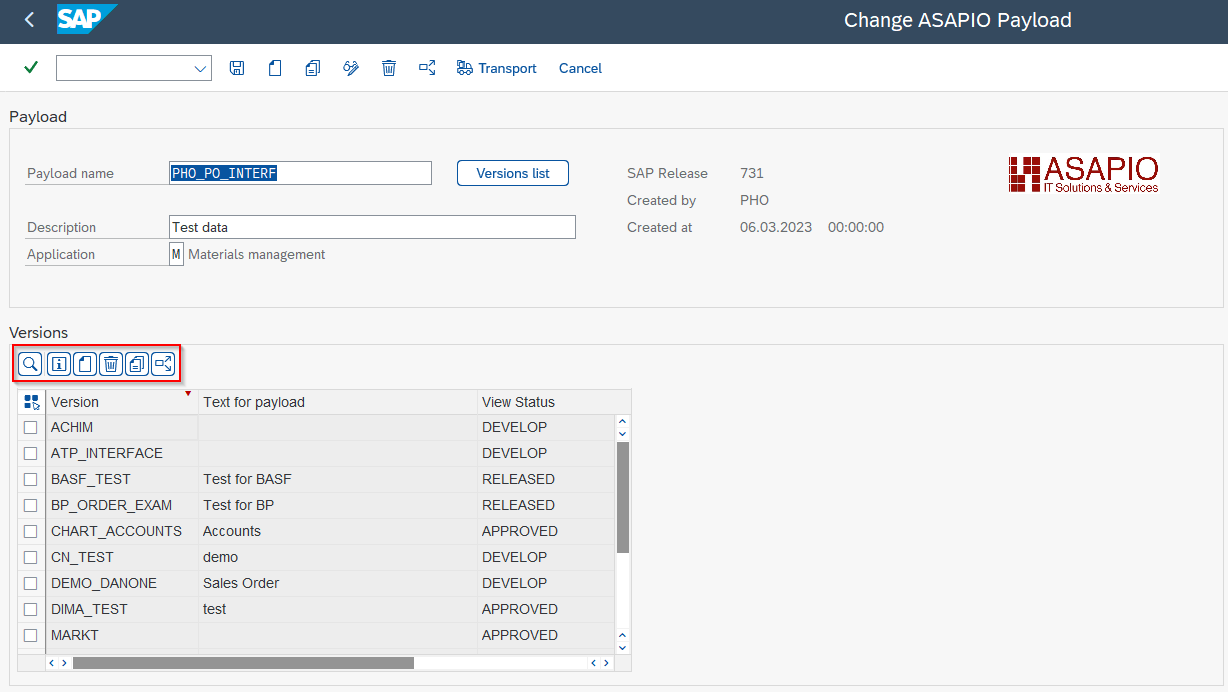
Payload Design Version Actions
The main buttons on the version screen:
- Search — search for versions.
- Documentation — display documentation.
- Create Version — create a specific version for the Payload Design.
- Delete Version — delete the selected version.
- Copy Version — copy the selected version, including all joins, to a new version.
- Where used version — find all outbound objects using this version.
Create a Custom Payload through Payload Designer
Steps to create a payload:
- Go to transaction /n/ASADEV/DESIGN.
- Click Create Payload Design on the main screen and fill in the required fields.
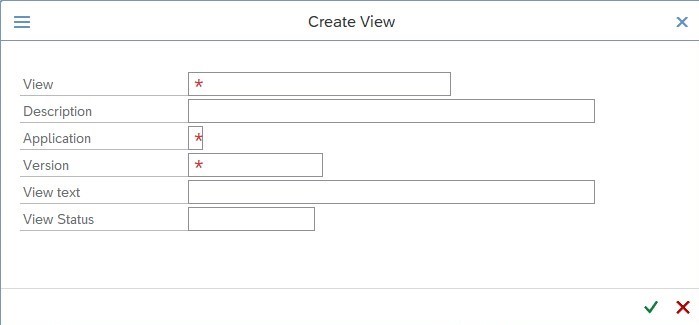
Creating a Payload Design also creates its first version and navigates to that version's main screen.
Open the Join Builder to create the first table joins:
- Insert a new table or custom view.
- Adjust table joins through field connections.
- Return to the main screen.
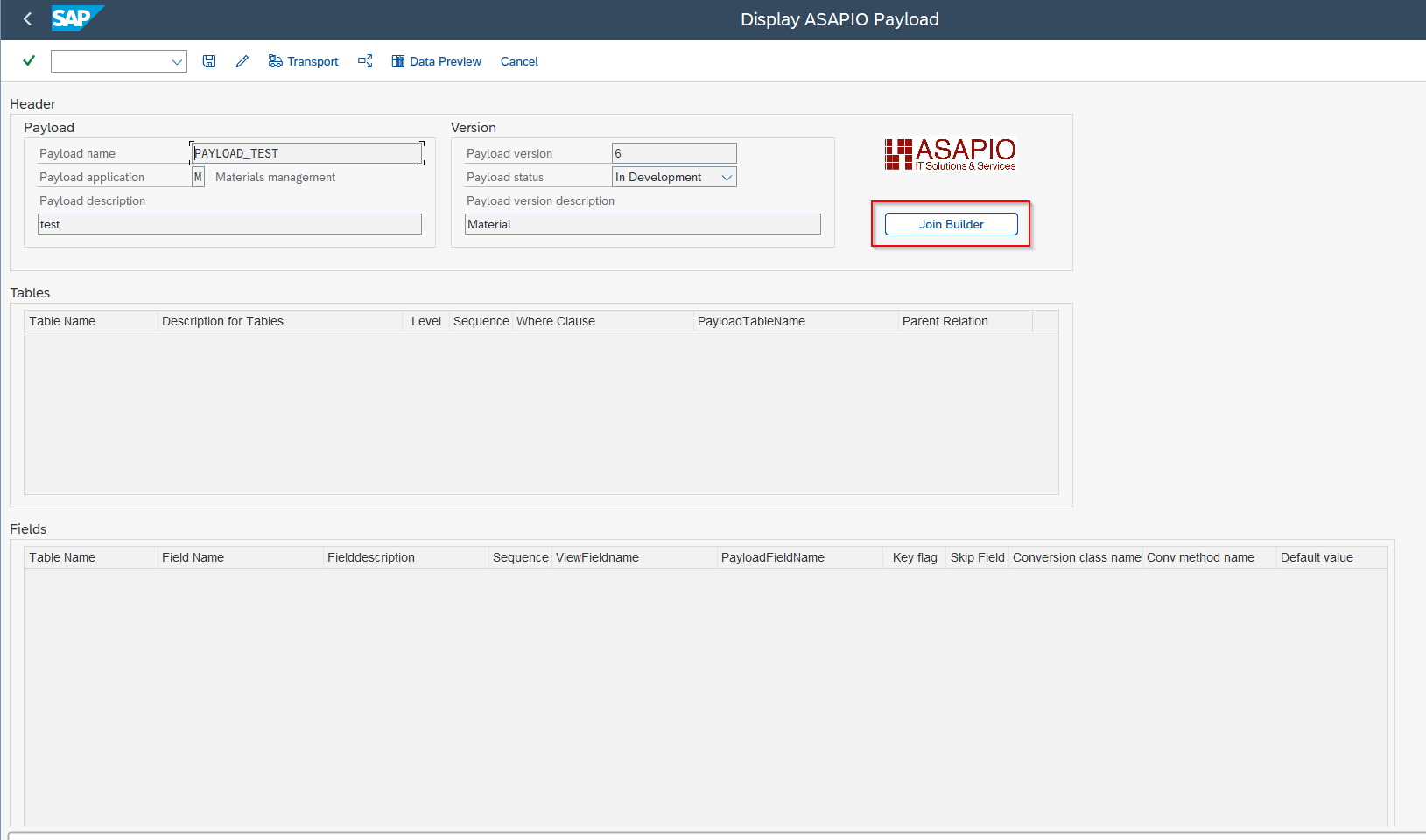
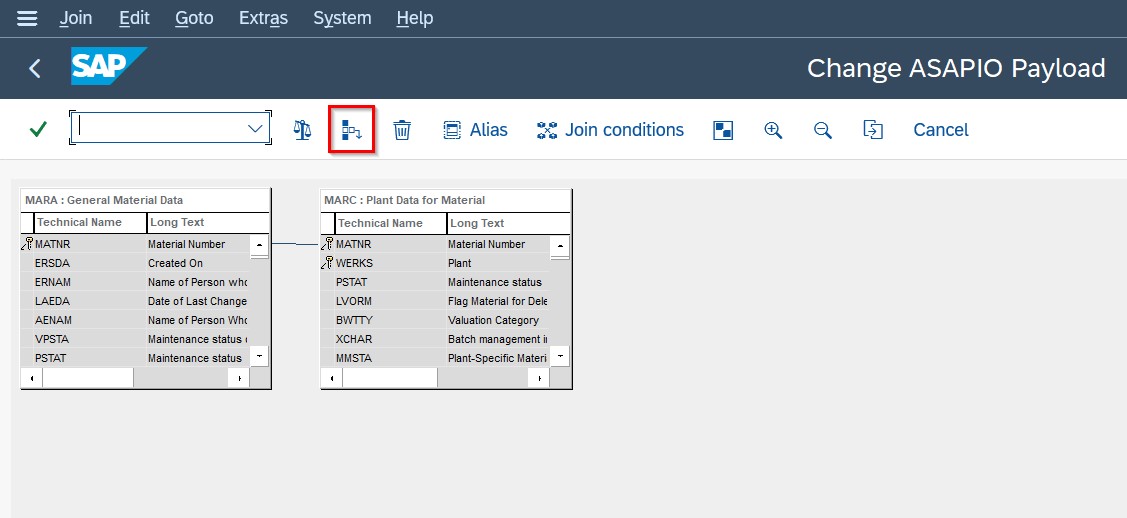

In the Table section, the parent relationship is determined automatically from the Join Builder's join conditions. In the Field section, key fields are determined automatically from the involved tables and the hierarchical sorting.
Add fields from tables:
- Double-click a table.
- Select one or multiple fields (multi-select via Ctrl-click).
- Fields can be resorted by specifying a sequence number.
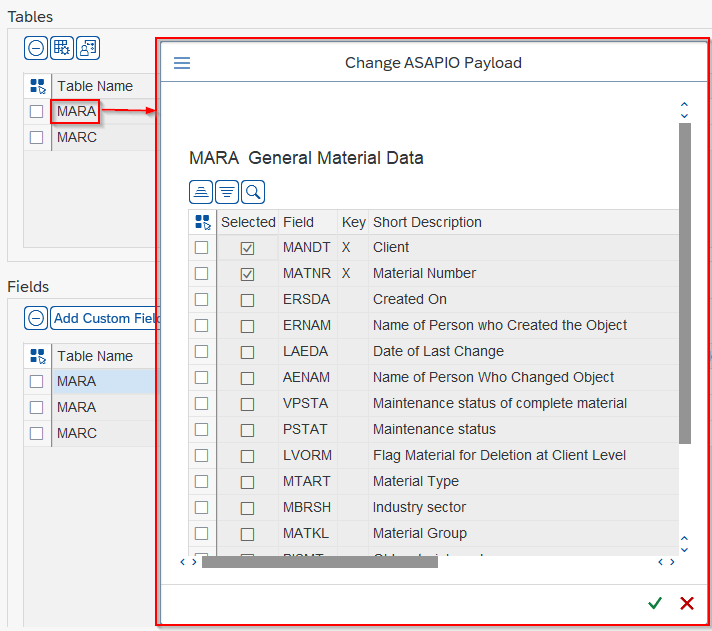
If a field name is duplicated across two or more tables, the table name is prefixed to the field name. If the resulting name exceeds 30 characters and shortening it to 30 characters still produces a duplicate, the current sequence number is appended instead.
Add restrictions on status values:
- Maintain system status — maintain system statuses for specific fields.
- Maintain user status — maintain user statuses for specific fields.

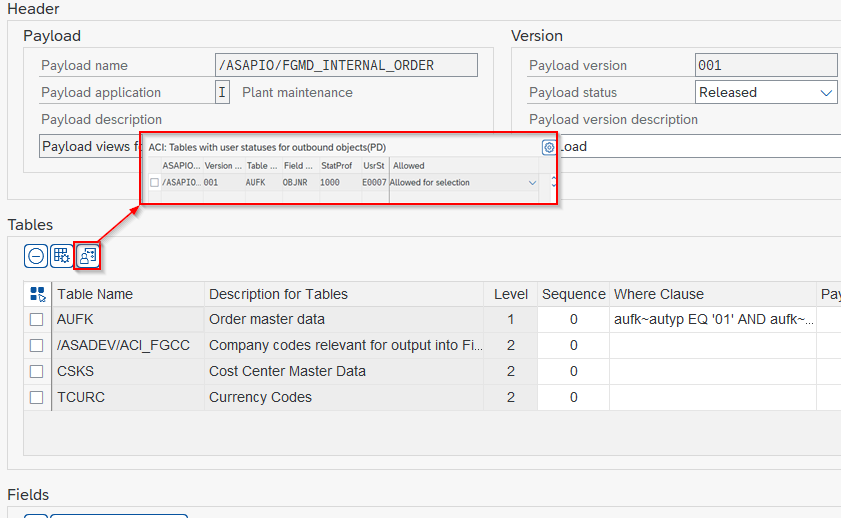
To create a new system or user status restriction, click New Entries and provide:
- Payload Designer Name
- Payload Designer Version
- The table name the status relates to
- The field name the status applies to
- The actual status ID
- Whether the status is considered in the selection or not
A maximum of two tables restricted by status are allowed per Design/Version.
Field Section Functionalities
- Add Custom Field — adds a new custom field to one of the selected tables.
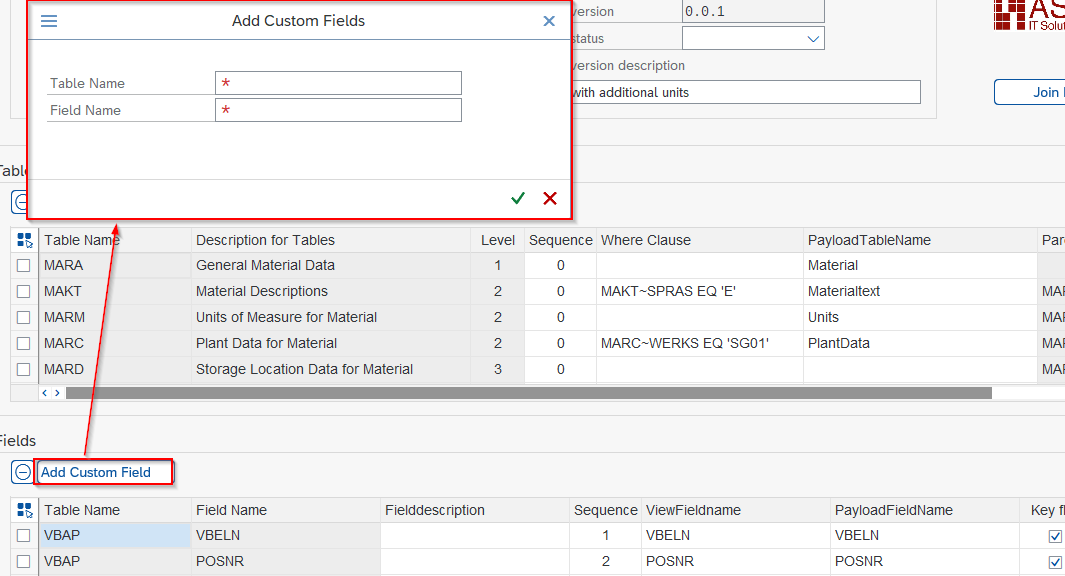
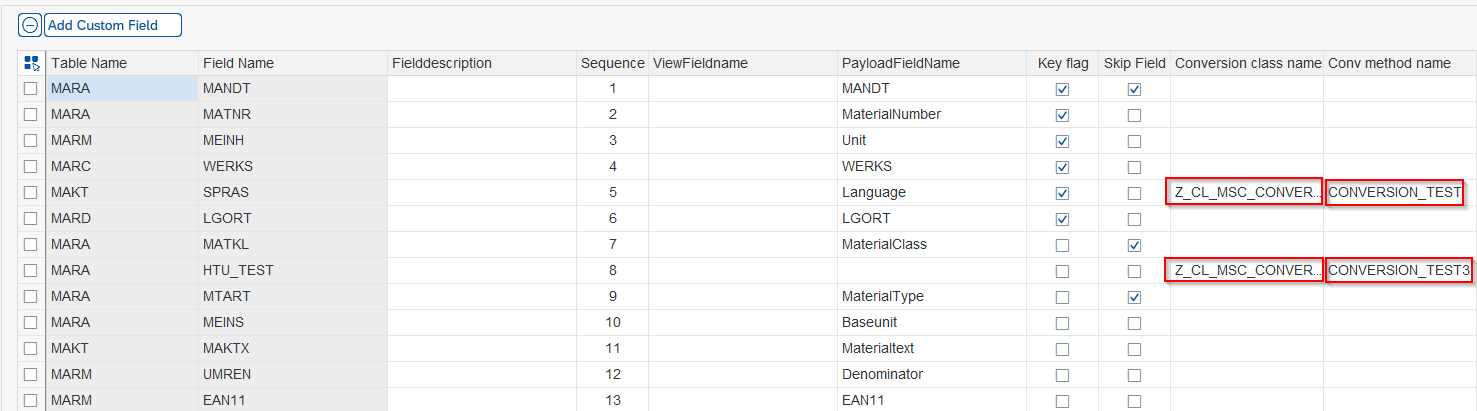
- Skip Field — check the fields to skip when creating the payload.

- Conversion class name / Conversion method name — specify a custom class/method to be called to determine the field's value.
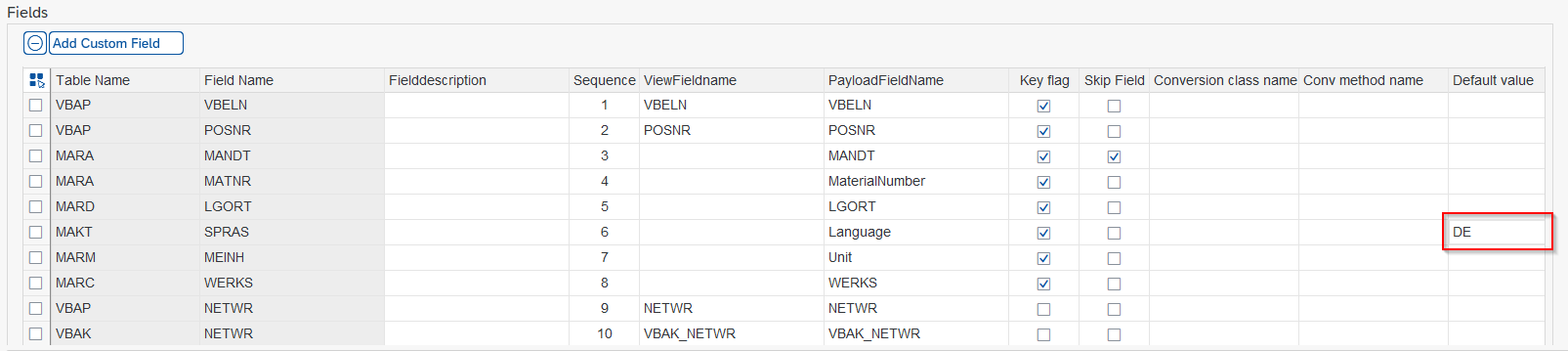
- Default Value — set a default value for the specified field.
- View Fieldname — a de-duplicated technical name for the field.
- Payload Fieldname — the name the field gets in the payload, i.e. the rename target.
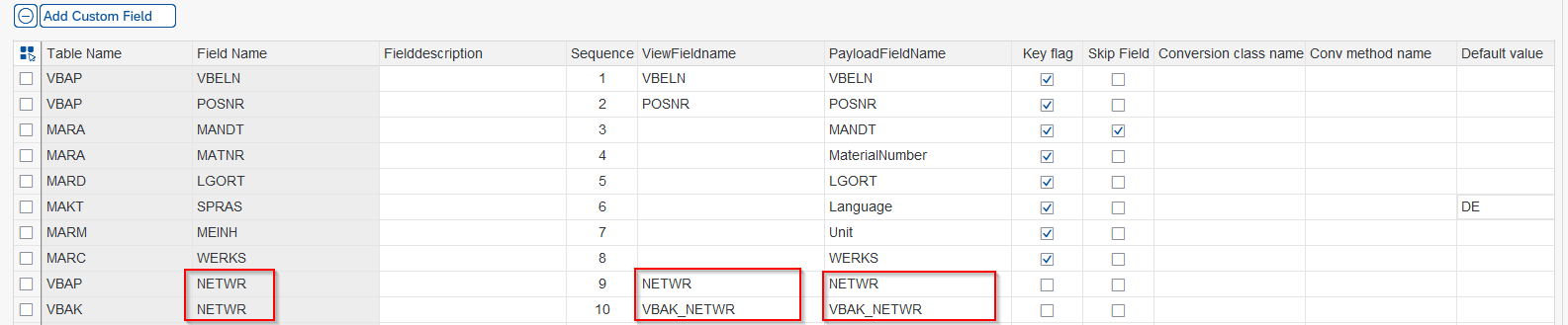
Table Aliases
Some scenarios require joining the same table to different tables in a Payload Design — for example, when the same table has entries at both header and item level and the data needs to be nested below header and items separately. For this, include the same table a second time under a different name: an alias for the table.
This feature is available from release 9.32405 (SP09).
Creating a Table Alias
- Go into Change mode.
- Click Join Builder.
- Click Alias Tables.
- Create a new alias table (enter the table name and the alias name).
- Click Insert and type the alias table created before.
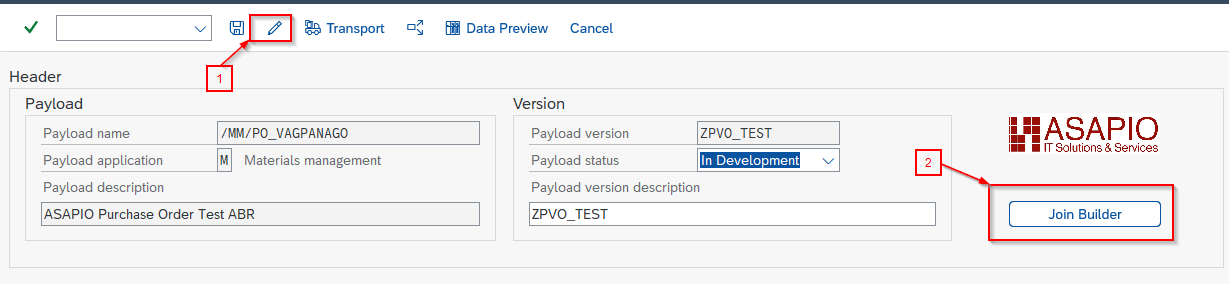
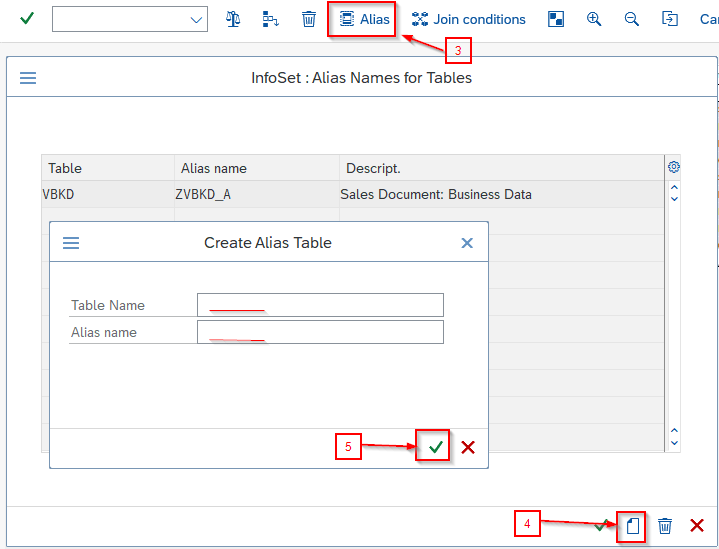

Example: VBKD
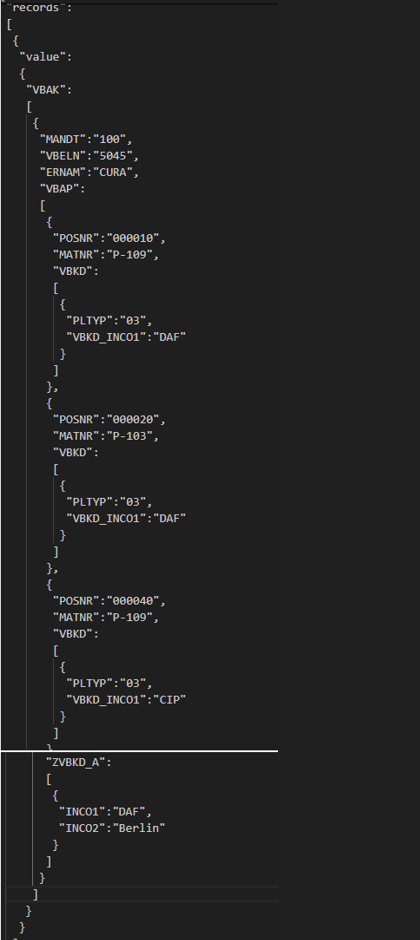
Consider the database tables for a sales order: VBAK (header), VBAP (items) and VBKD (business data of the sales document). If the payload needs output fields such as Incoterms, which exist both at header and item level, using only the header database table (VBKD) means the header's Incoterms field will not appear in the output — because VBAP contains the line items (010–040), not the header.
- Transaction: VA01
- Create a sales order
- Sales tab (for the header)
- Double-click an item line
- Billing document tab (for the item lines)
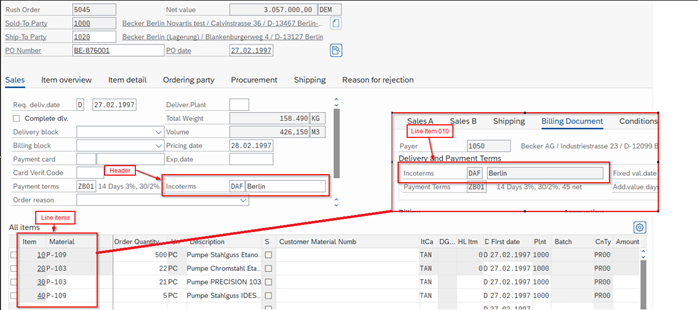
To handle this, add an alias for VBKD (e.g. ZVBKD_A in this example). On the version's main screen, add a where condition to limit this instance of the table to the header.
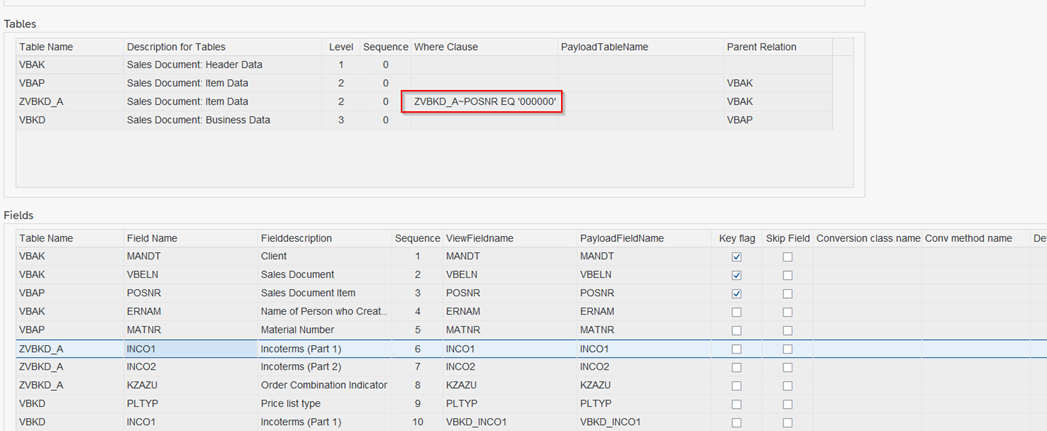
The resulting payload:
Data Preview
Preview the data directly in the Payload Designer, as a table or as a JSON payload.
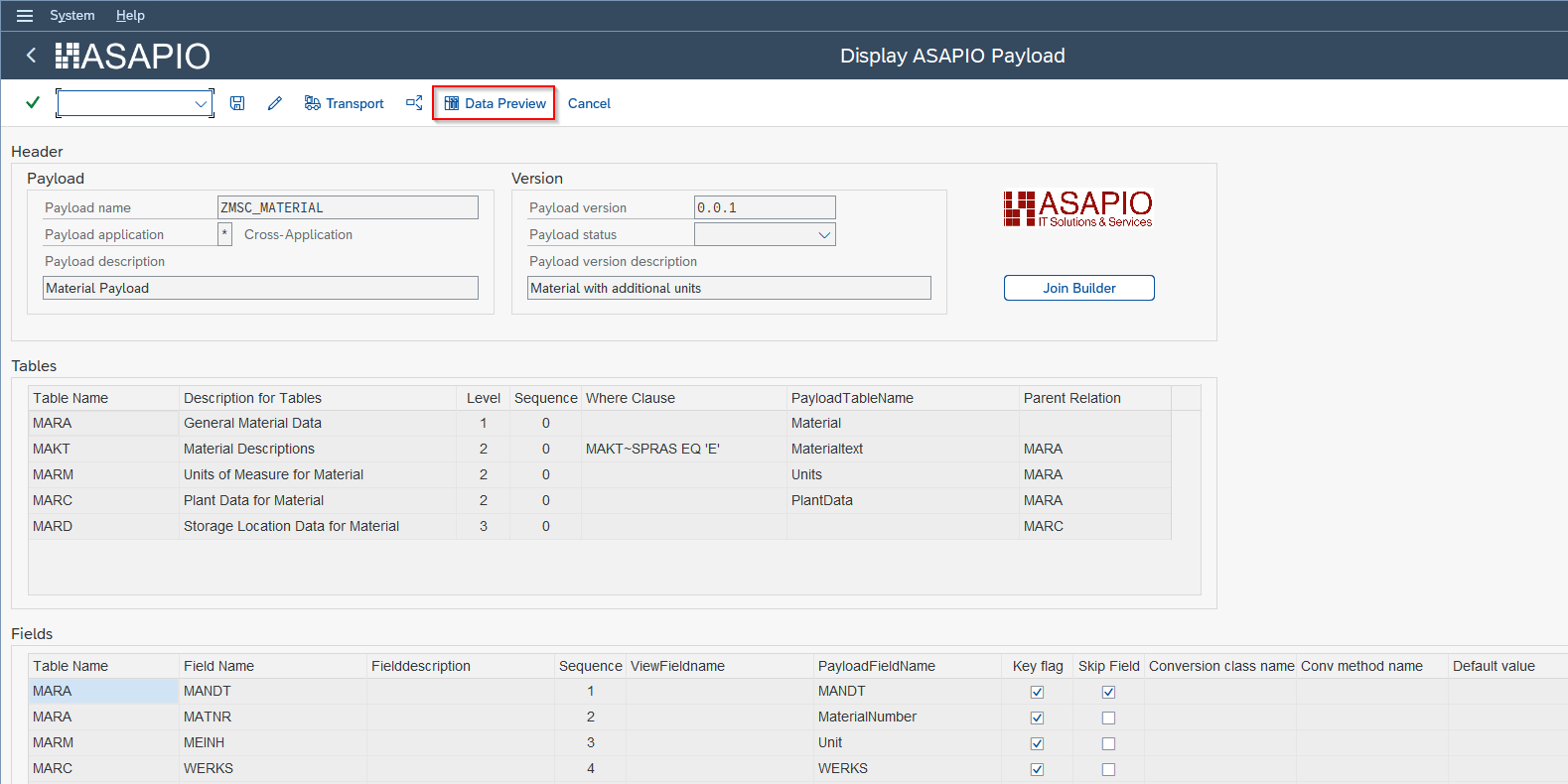
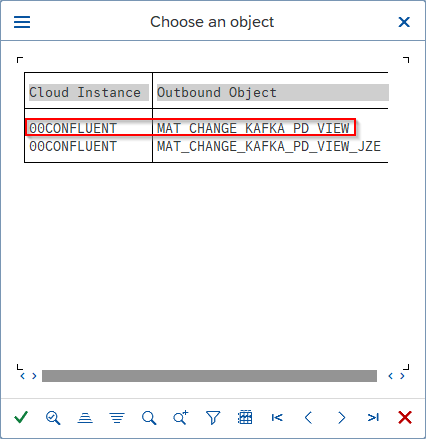
The payload must be used in at least one outbound object before it can be previewed.
Select an object configured to use the Payload Design:
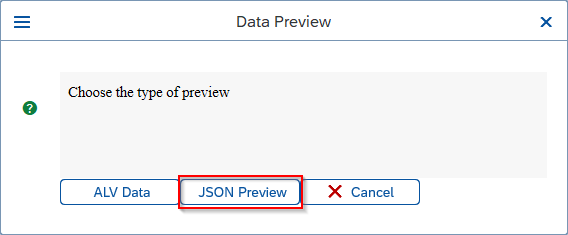
Select the preview type and a key to generate the preview for:
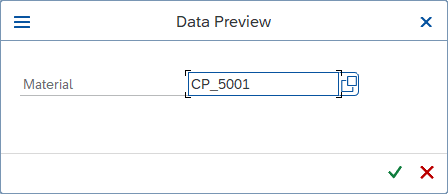
The selected preview type then opens — as a table:
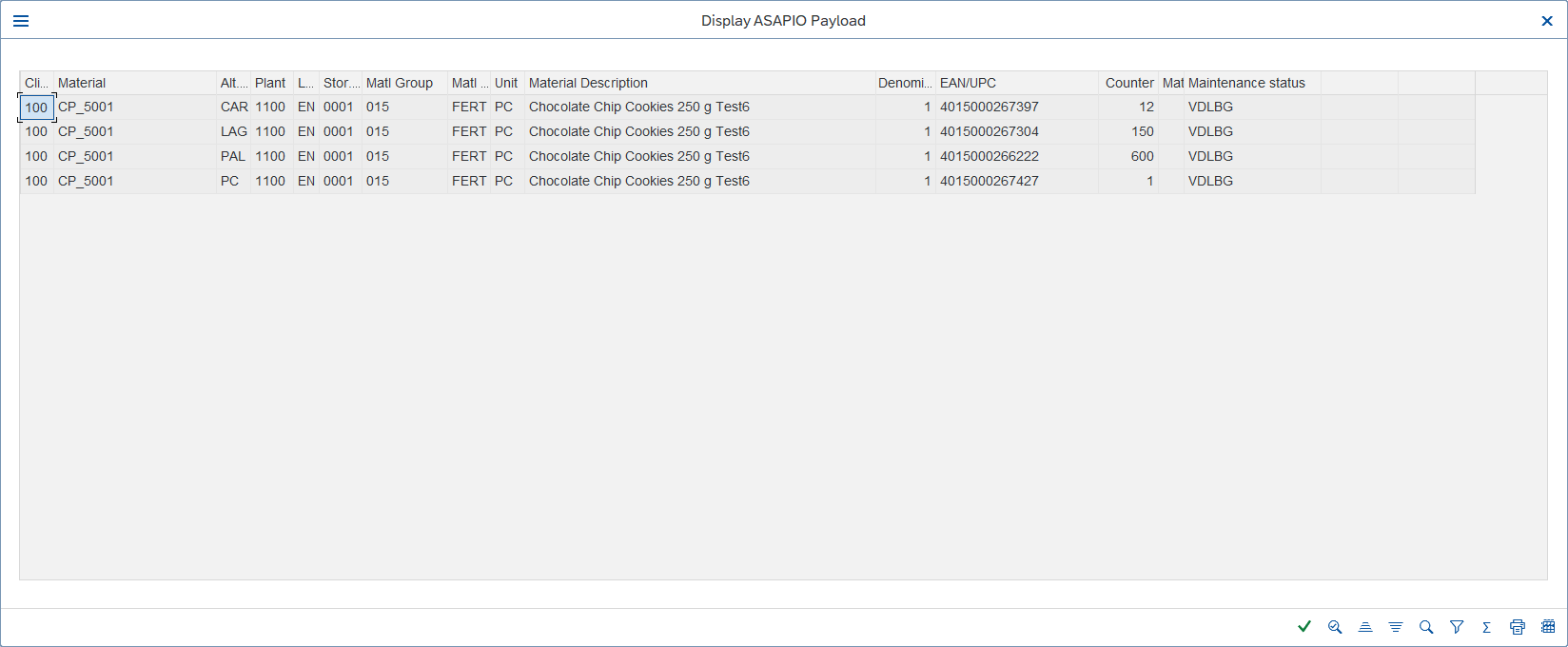
...or as JSON:

Use a Payload in an Outbound Interface
Create Outbound Object Configuration
- Transaction: SPRO
- Go to IMG > ASAPIO Cloud Integrator – Connection and Replication Object Customizing, or directly to transaction /ASADEV/68000202
- Select the created Connection
- Go to section Outbound Objects
- Add a New Entry and specify:
- Object — name of the outbound configuration
- Extraction Func. Module —
/ASADEV/ACI_GEN_PDVIEW_EXTRACT - Load Type — Incremental Load
- Trace — activate for testing purposes
- Formatting Func. —
/ASADEV/ACI_GEN_VIEW_FORM_CB - Field Payload View Name — Payload Name
- Field Payload View Version — Payload Version

Set Up 'Business Object Event Linkage'
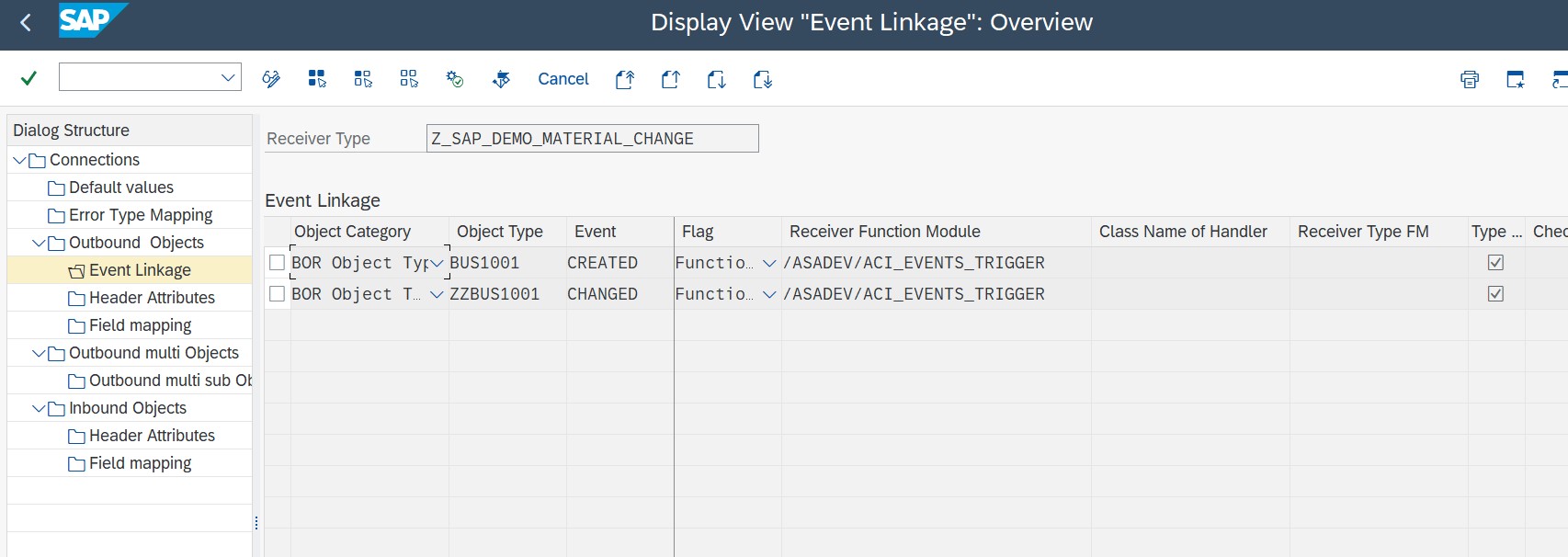
Link the outbound object configuration to a Business Object event:
- Transaction: SWE2
- Add a New Entry and specify:
- Object Category — BO BOR Object Type
- Object Type — the Business Object Type sending the event
- Event — the event to react to
- Receiver Type — the message type of the outbound object (the link to the add-on configuration)
- Receiver Call — Function Module
- Receiver Function Module —
/ASADEV/ACI_EVENTS_TRIGGER - Linkage Activated — tick the checkbox
Set Up the Target Endpoint in 'Header Attributes'
Configure the topic/queue name (or equivalent) that events should be sent to:
- Go to section Header Attributes
- Add a New Entry and specify:
- Header Attribute — name of the attribute, according to your connector
- Header Attribute Value — value of the attribute, according to your connector
Use Clean Core Checks
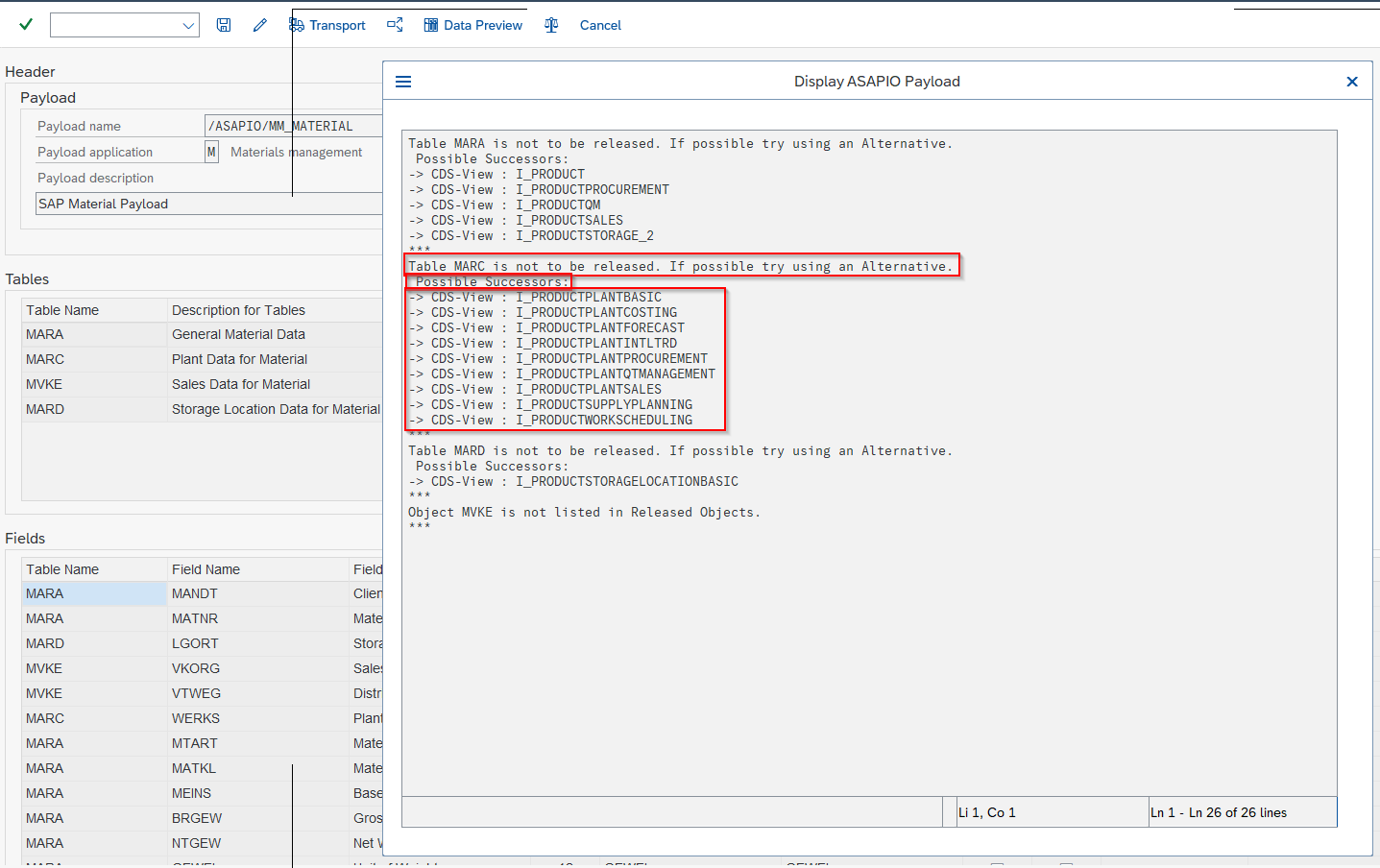
Created Payload Designs can be checked against SAP's official clean-core recommendations. The check detects violations and shows recommendations on how to fix them (e.g. which CDS views to use instead of direct table access). Use CDS Views for extension fields to remain clean-core compliant.
Choose Released Objects Repository
The checks use the rules published by SAP at github.com/SAP/abap-atc-cr-cv-s4hc. For SAP S/4HANA Cloud Private Edition or on-premise, use the release version file containing PCE in its name – e.g. for Release 2023 FPS02: objectReleaseInfo_PCE2023_2.json.
Download the rules file that fits your target S/4HANA system best (or the latest version for Private Cloud), always using the .csv version.
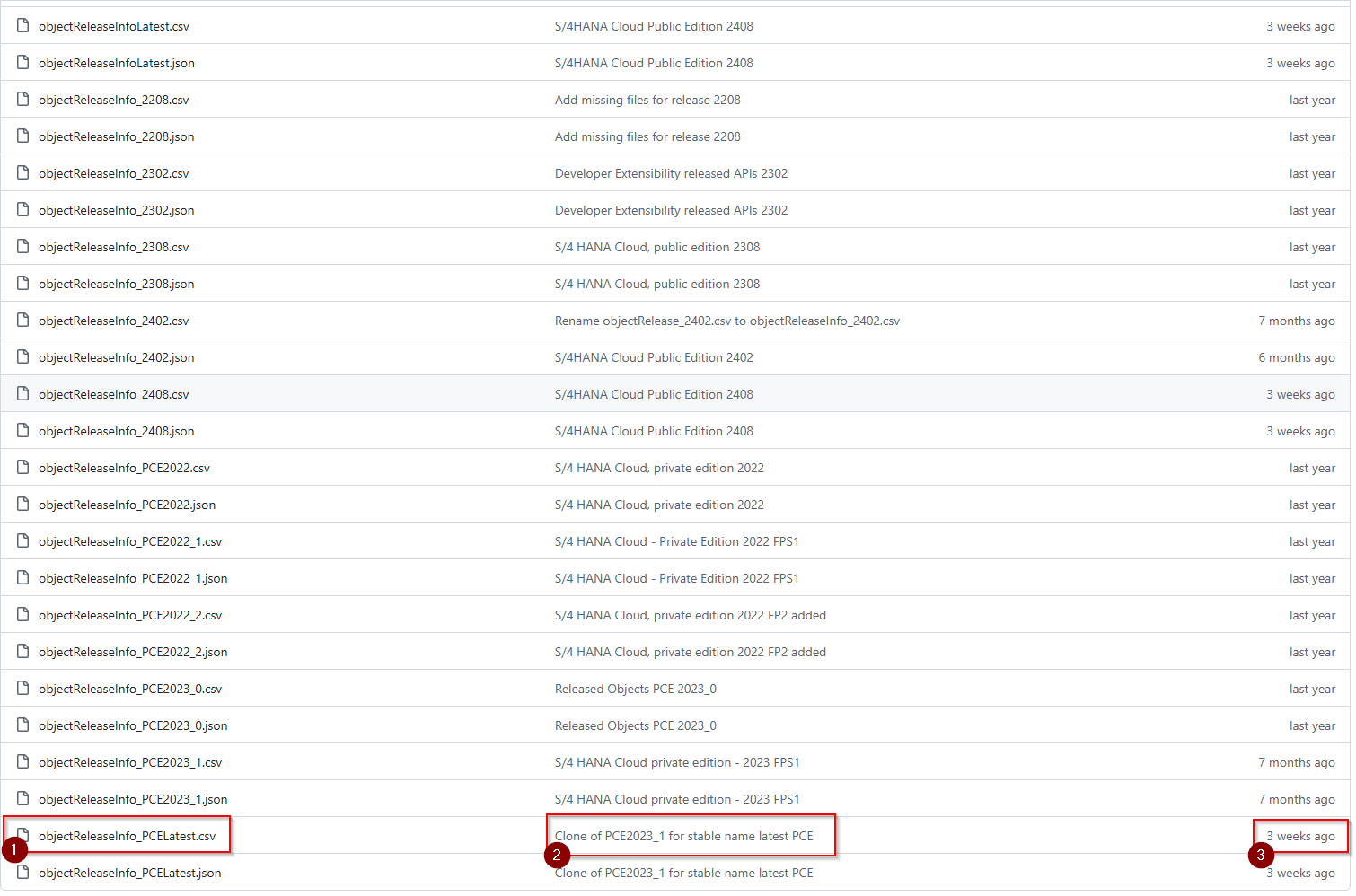
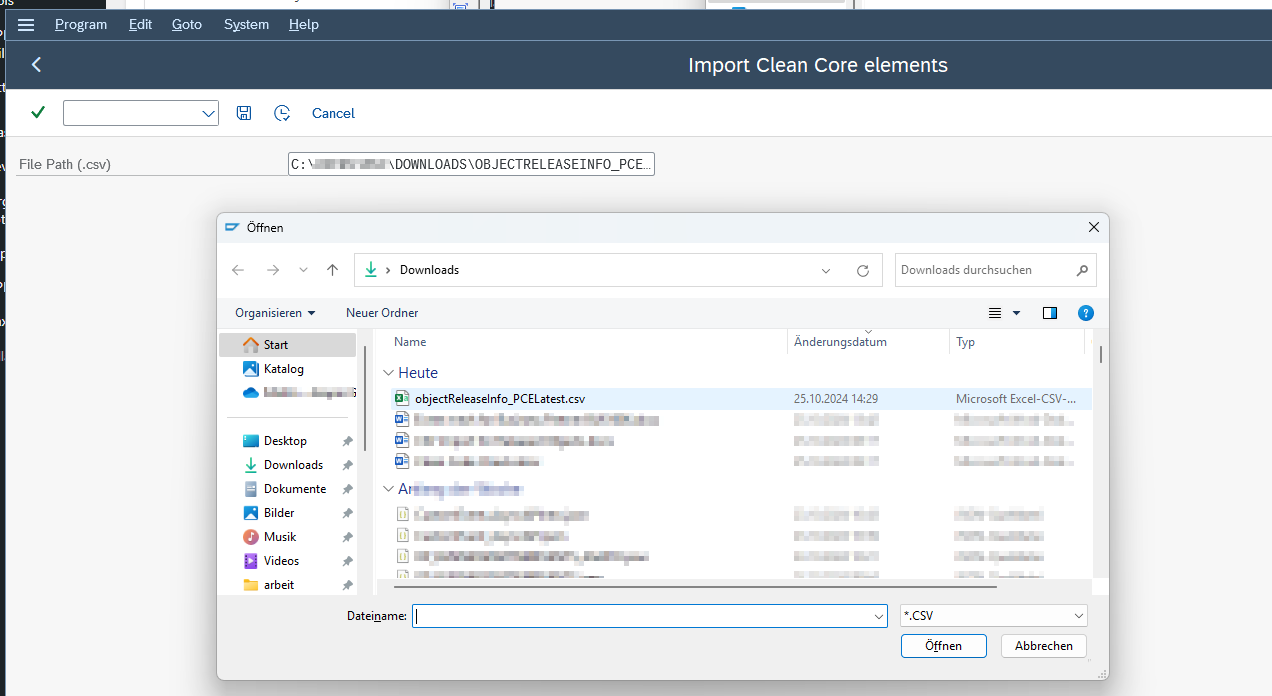
Upload the rules file to the system:
- Go to transaction /ASADEV/CCC_IMPORT
- Select the downloaded file
- Execute
A success message confirms the database has been updated, and checks can now be run on your Payload Designs.
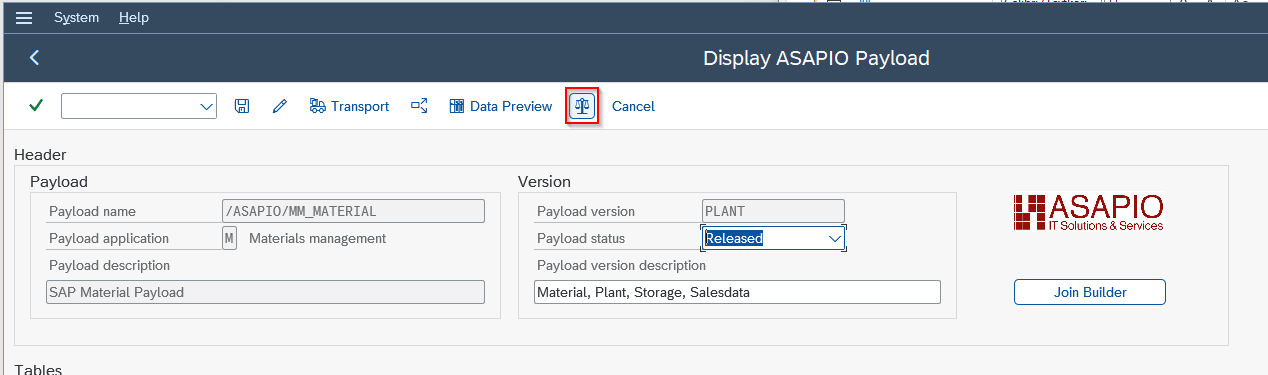
Execute Checks
Navigate to the Payload Design Version. A new toolbar button runs the Clean Core Checks:
After running the checks, a popup shows the results – violations and possible successors for the tables used:
Via Event Studio
In the Data Catalog, click a business object or CDS View and select Payload. The same field selection, filter, and join capabilities are available in the visual UI.
Note: CDS View Entities are only configurable via Event Studio, not via SAP GUI transactions.