Docs / Inbound Messaging / IDoc Configuration Guide
IDoc Configuration Guide
SAP-side configuration steps for inbound IDoc processing with the ASAPIO Integration Add-on: setting up the partner profile, message type, function modules and inbound object needed to receive and process inbound IDocs.
1. Partner Profile Configuration
A) Create Partner Profile LOCAL
Explanation: Partner profiles define how IDocs are received or sent for each logical system. LOCAL is used for the current system. Partner profiles store message types, ports, and process codes for correct IDoc handling.
Steps:
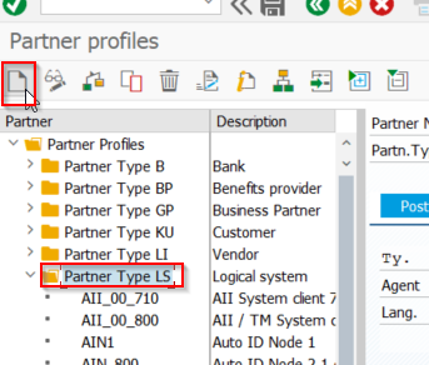
- Transaction: WE20
- Create LOCAL in Partner Type LS

B) Use Default Value to Determine the Partner Profile
Explanation: ASAPIO allows automatically selecting the correct partner profile for a connection using default values. This reduces manual configuration errors and simplifies inbound processing.
Steps:
- Transaction: SPRO → ASAPIO Cloud Integrator → Connection and Replication Object Customizing, or go directly to transaction
/ASADEV/ACI_SETTINGS - Select the created Connection
- Go to section Default Values
- Add Default Attribute:
ACI_EDI_PARTNER_PROFILE - Add Partner Profile

ACI_EDI_PARTNER_PROFILE2. Create Message Type
Explanation: Message types define the kind of business document being exchanged (e.g., material master, purchase order). ASAPIO writes its own change pointers to a message type, therefore a new message type needs to be created for each Outbound Object.
Steps:
- Transaction: WE81
- Create new entry
- Create message type
3. Assign Message Type to IDoc Type
Basic type: /ASADEV/ACI_GENERIC_IDOC
Explanation: This step links a message type with a specific IDoc structure (basic type). Without this mapping, the system will not know which IDoc layout to use for a message.
Steps:
- Transaction: WE82
- Create new entry
- Assign basic type to message type

4. Assignment of FM to Logical Message and IDoc Type
Explanation: Function modules process IDocs. Assigning a function module ensures the correct processing logic is executed when an IDoc of a specific type and message is received.
Steps:
- Transaction: WE57
- Create new entry
- Assign FM to message type
- FM: Copy sample FM
/ASADEV/ACI_SAMPLE_IDOC_PROCESand create your process code

5. Characteristics of Inbound Function Modules
Explanation: Inbound function modules process IDocs when received. Defining their characteristics ensures the system knows which modules are responsible for processing incoming messages.
Steps:
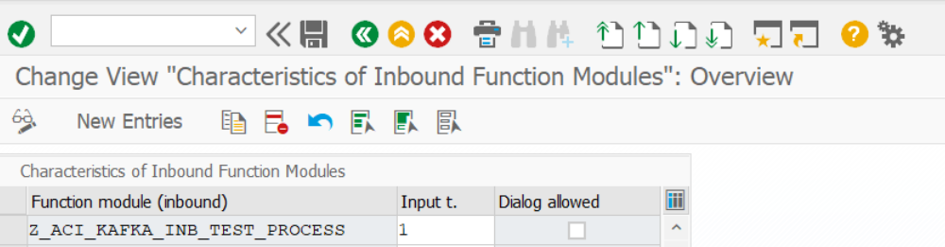
- Transaction: BD51
- Create new entry
- Add FM
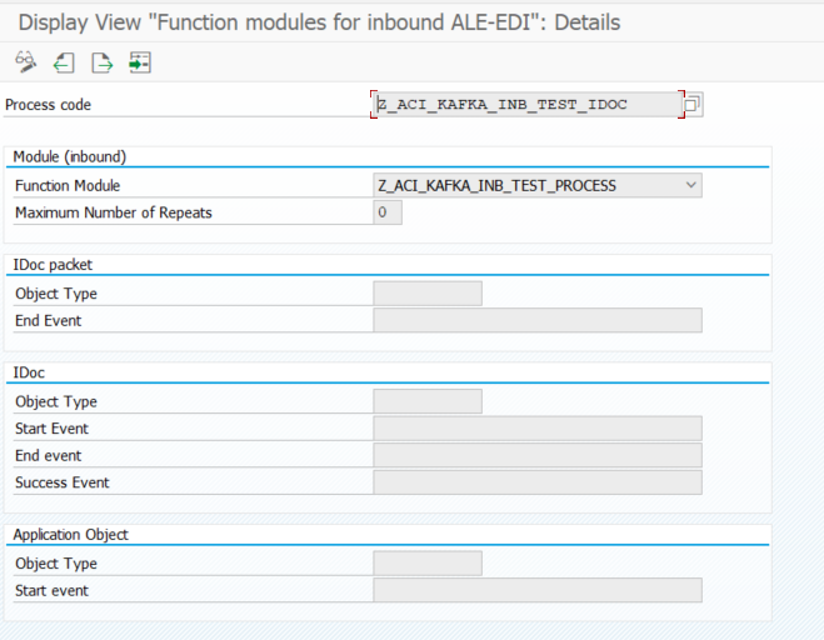
6. Create Inbound Process Code
Explanation: Inbound process codes connect the partner profile, message type, and function module, defining how inbound IDocs are processed automatically.
Steps:
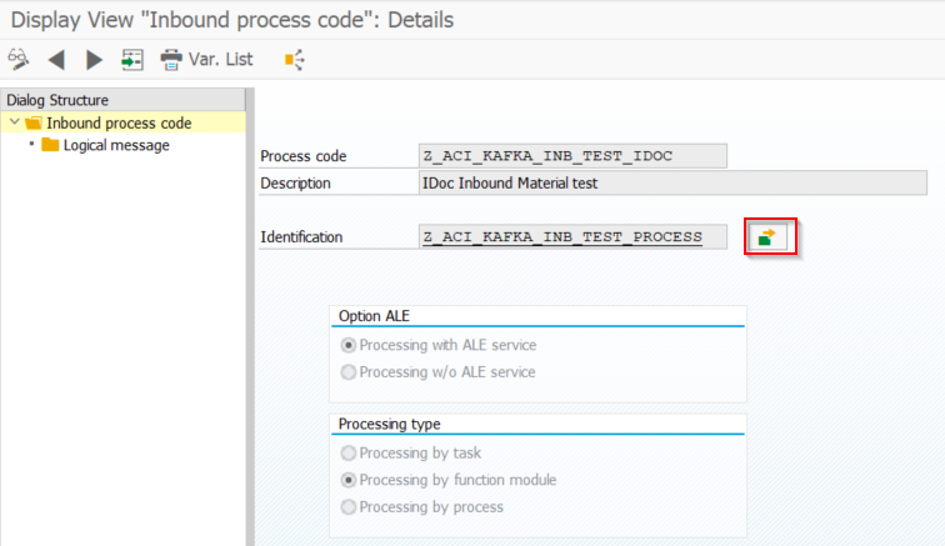
- Transaction: WE42
- Create new entry
- Add Inbound process code
Assign FM to Process code:
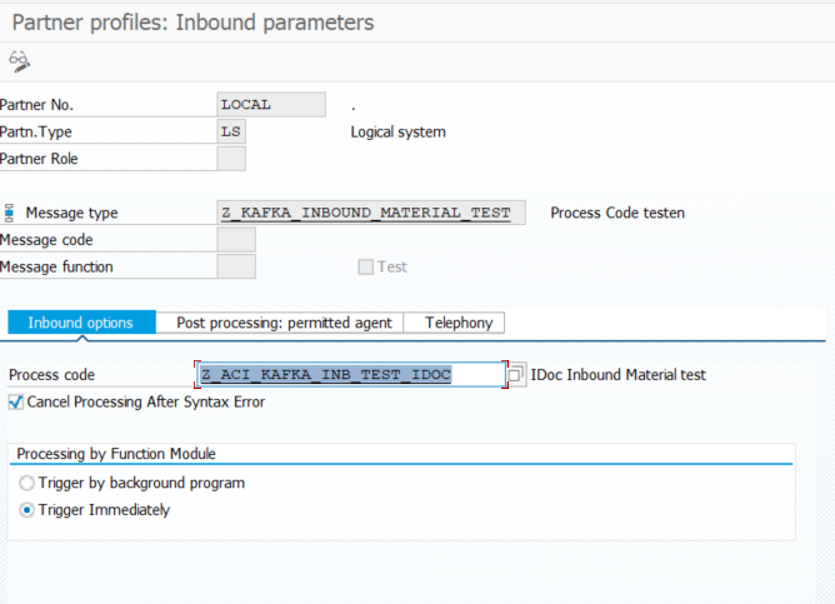
7. Add Message Type to Inbound Partner Profile
Explanation: This step enables the system to recognize which message types should be processed inbound for a given partner profile.
Steps:
- Transaction: WE20
- Add message type and process code to Inbound section

8. Configure Inbound Object
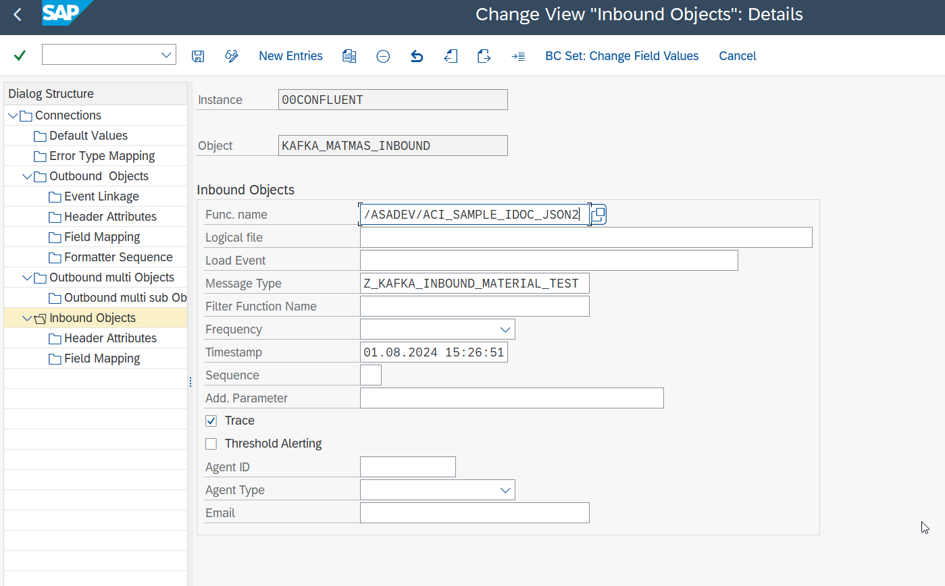
Explanation: Inbound objects define which outbound objects (e.g., business data) should trigger inbound IDocs. This mapping is required for automatic data replication. The function module /ASADEV/ACI_SAMPLE_IDOC_JSON2 converts any incoming JSON payload into a generic ASAPIO IDoc. Processing takes place in a custom coded process code.
Steps:
- Transaction: SPRO → ASAPIO Cloud Integrator → Connection and Replication Object Customizing, or go directly to transaction
/ASADEV/ACI_SETTINGS - Select the created Connection
- Go to section Inbound Objects
- Add New Entry and specify:
- Object: name of the outbound configuration
- Extraction Func. Module:
/ASADEV/ACI_SAMPLE_IDOC_JSON2 - Message Type: the created message type
- Trace: activate for testing purposes