Docs / Monitoring / Active Alerting
Active Alerting
Threshold alerting enables pro-active notifications about connection errors when sending messages. Notifications happen via the SAP Business Workplace. A notification is only triggered when a configured threshold is exceeded — the system calculates an error rate for all calls in a configured time range, and sends an alert to the inbox if the rate is above the configured threshold.
Alerting configuration
The alerting can be configured in two dimensions:
- How the error rate is calculated / evaluated
- Who is notified in case the error rate is above the threshold
The evaluation can either be calculated on:
- Connection level (one error rate for all objects of a connection together as one value)
- Object level (an error rate per configured object — this is the recommended configuration)
The notification can be configured on:
- Connection level (one recipient definition for all sub-objects)
- Object level (one recipient definition for each outbound object)
For connection-level notification, the evaluation can be selected as either connection level or object level in the variant. Object-level notifications only support object-level evaluation.
| Connection-level notification | Object-level notification | |
|---|---|---|
| Connection-level evaluation | ✓ | |
| Object-level evaluation | ✓ | ✓ |
New in Release 9.32304: option to specify different thresholds for different connections/objects, so specific alerting configurations can be defined for certain interfaces.
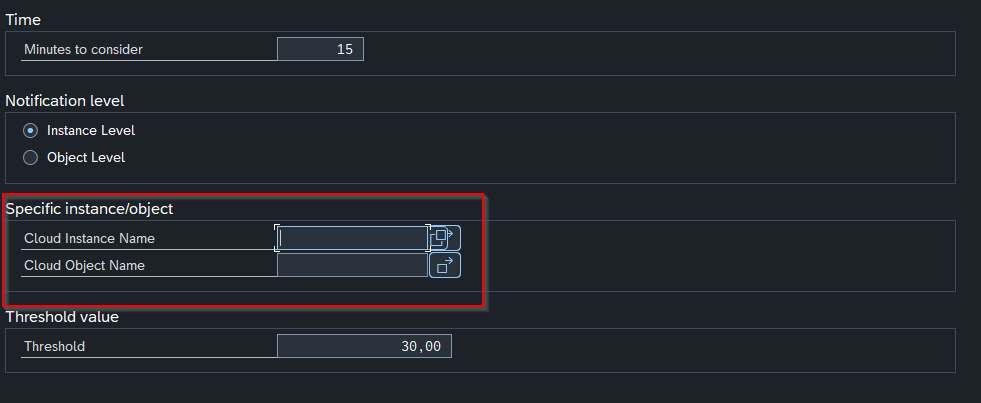
Example configuration. Assuming you have the following connections and objects:
- Connection 1: Azure
- Object 1.1: Sales Order Change
- Object 1.2: Material Change
- Connection 2: Solace
- Object 2.1: Delivery Notification
- Object 2.2: Invoice Create
The different selections in the Active Alerting report resolve to the following evaluations:
| Selected instances | Selected objects | Evaluated instances | Evaluated objects |
|---|---|---|---|
| Azure | — | Azure | Sales Order Change, Material Change |
| Azure | Sales Order Change | Azure | Sales Order Change |
| Azure, Solace | Material Change | Azure | Material Change (if objects are specified, they must be specified for every instance) |
| Azure, Solace | Material Change, Delivery Notification, Invoice Create | Azure, Solace | Material Change, Delivery Notification, Invoice Create |
| — | — | Azure, Solace | Sales Order Change, Material Change, Delivery Notification, Invoice Create (if no connections/objects are selected, everything is evaluated, as in previous releases) |
Set-up notification on connection level
Edit the connection instance customizing that ties together the RFC destination and the cloud connector type:
- Transaction: SPRO
- Go to ASAPIO Cloud Integrator – Connection and Replication Object Customizing
- Select the entry and specify:
- Checkbox Threshold Alerting: set to true to activate
- Field Agent ID: agent ID to be notified
- Field Agent Type: type of agent, e.g. User
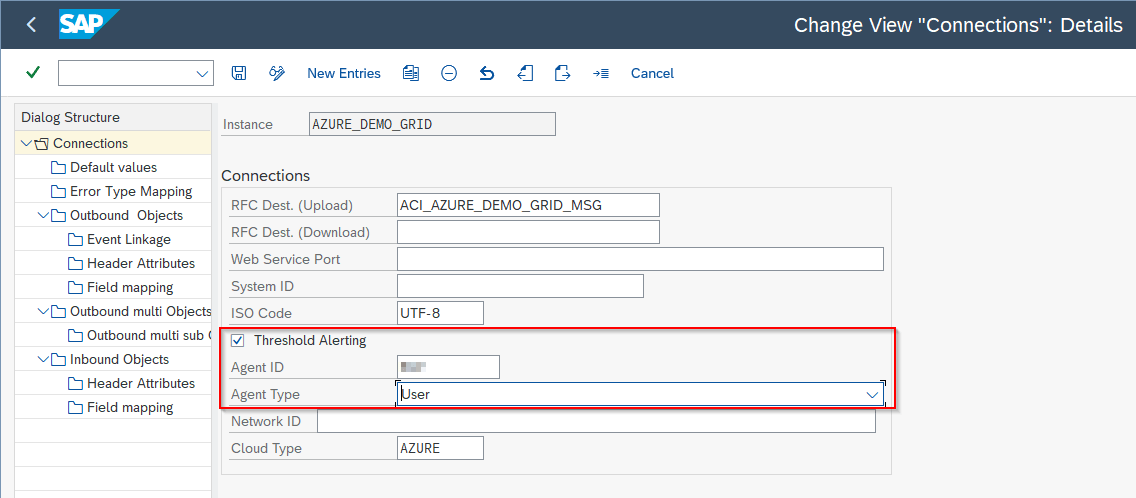
Set-up notification on outbound object level
Edit the outbound objects customizing:
- Transaction: SPRO
- Go to ASAPIO Cloud Integrator – Connection and Replication Object Customizing
- Select the Connection
- Go to section Outbound Objects
- Select the entry and specify:
- Checkbox Threshold Alerting: set to true to activate
- Field Agent ID: agent ID to be notified
- Field Agent Type: type of agent, e.g. User
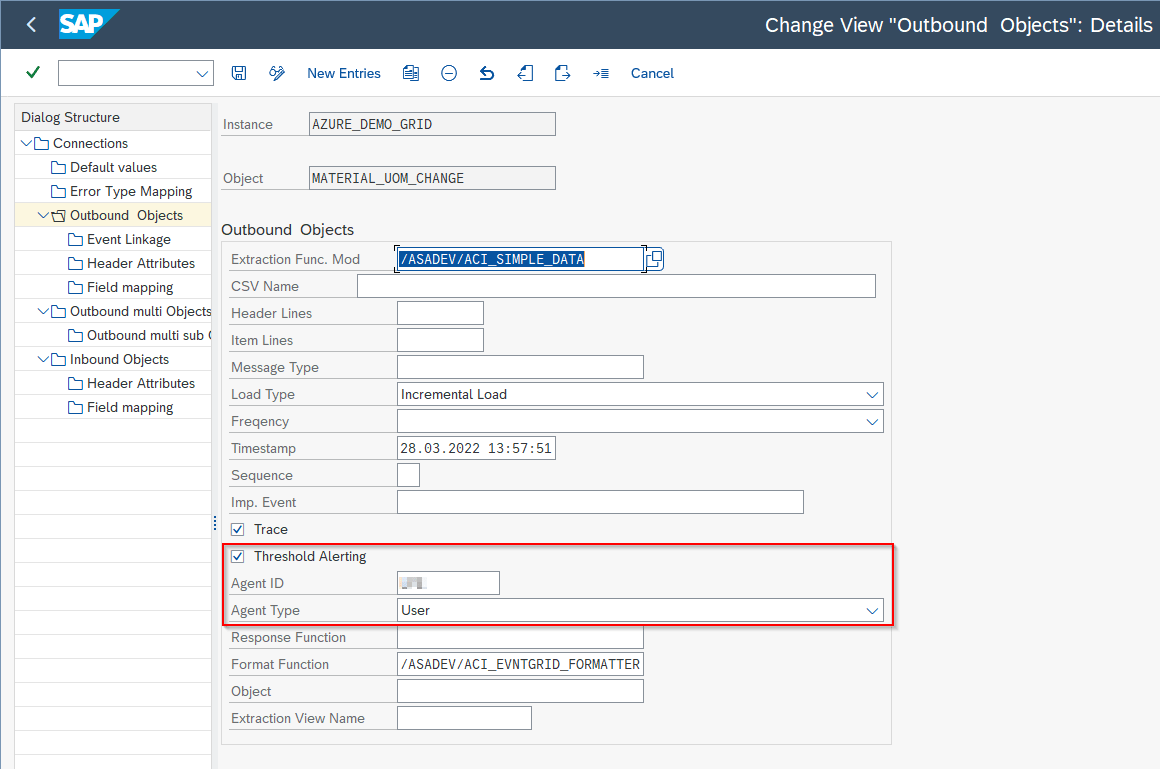
Set-up linkage to notification workflow
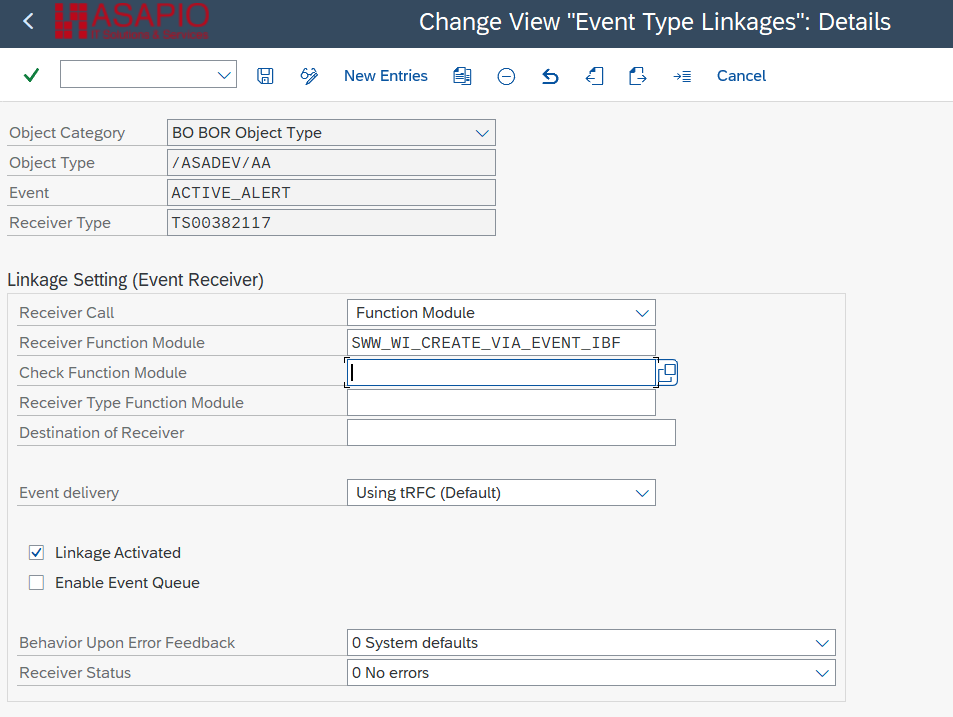
Configure the linkage to the notification workflow:
- Transaction SWE2
- Switch to Change Mode
- Select New Entries and configure the following:
- Object Type:
/ASADEV/AA - Event:
ACTIVE_ALERT - Receiver Type:
TS00382117 - Receiver Call: Function Module
- Receiver Function Module:
SWW_WI_CREATE_VIA_EVENT_IBF
- Object Type:
Set-up job for error evaluation
Create a variant
The variant defines the customizing of the job:
- Transaction: SE38
- Enter the program name
/ASADEV/ACI_ACTIVE_ALERTING - Execute (F8)
- Enter the program name
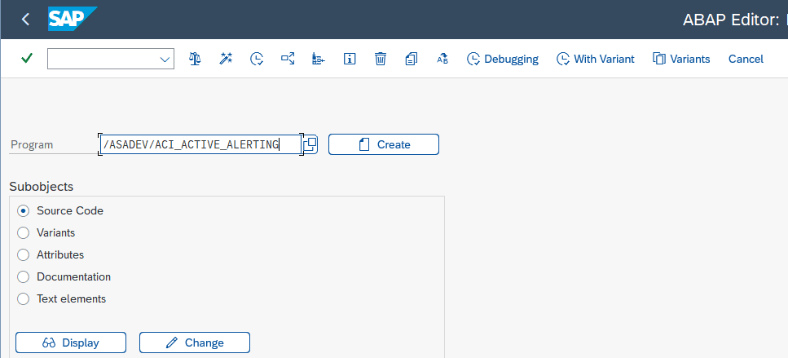
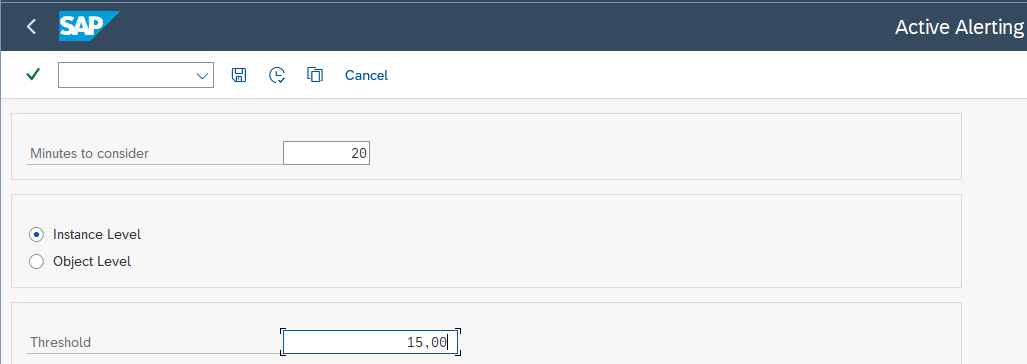
Report customizing options:
- Minutes to consider: current time minus the specified number of minutes
- Instance Level / Object Level: the level at which error rates are evaluated
- Cloud Instance Name / Object Name: the instance/object to run the evaluation for (new in release 9.32304)
- Threshold: threshold in percent to trigger a notification
Once the customizing is done, Save as Variant… (Ctrl+S).
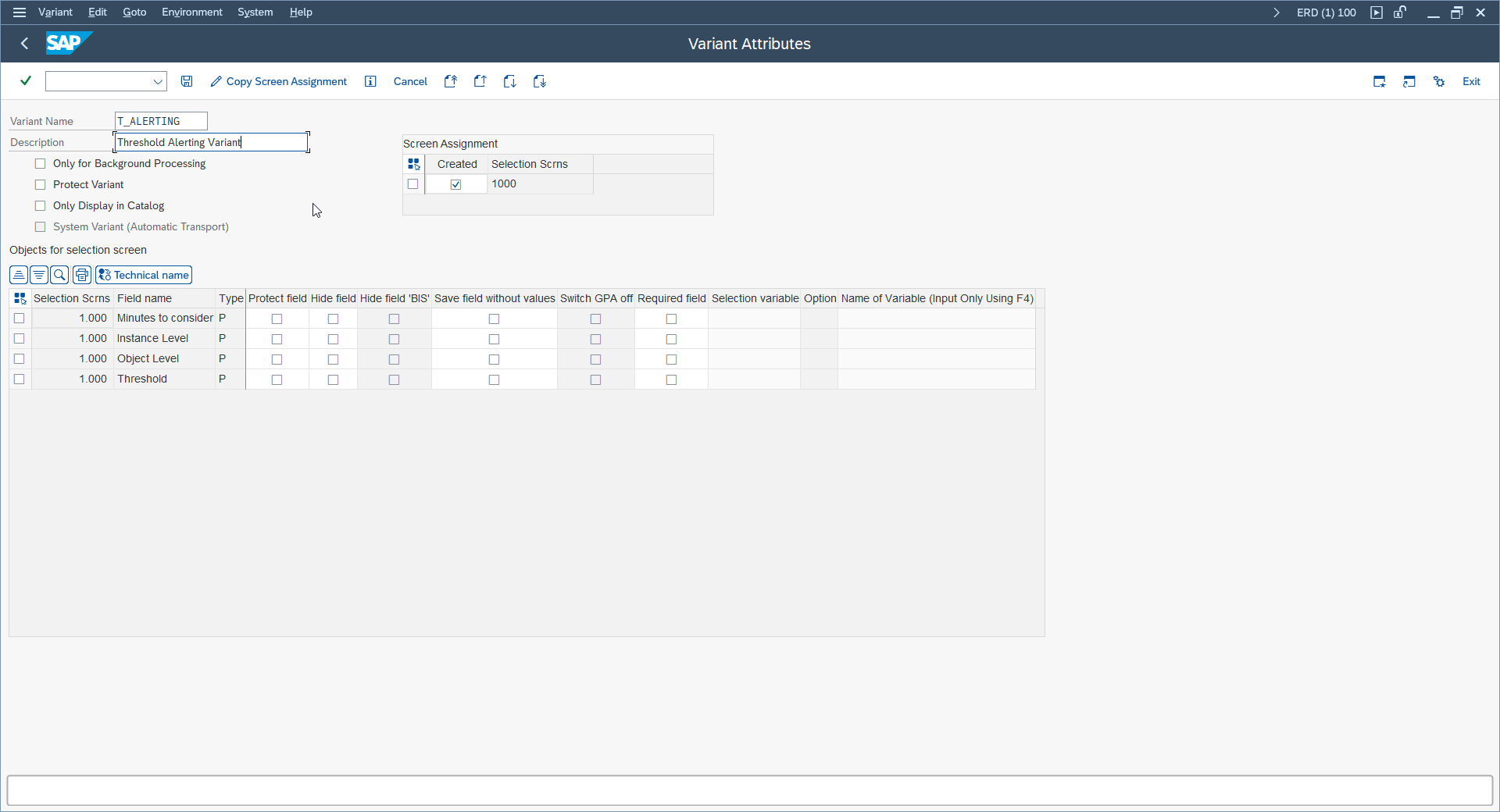
Enter a Variant Name and Description, then Save (Ctrl+S).
Schedule a job
A job must be scheduled for report /ASADEV/ACI_ACTIVE_ALERTING for regular checking of calls and continuous notifications, using the variant created above.
See the SAP Help Portal for a detailed explanation on Scheduling Background Jobs.
BAdI for Active Alerting
Overview
This BAdI implementation extends the Active Alerting report with the capability to send alert information to an external ticketing system. The goal is:
- To forward all threshold-violation logs (AMR logs) automatically to an external system
- To allow custom logic (filtering, transformation, routing)
- To skip email alerting
- To provide two integration points: full transmission (
send_all_to_external) and filtered transmission (send_filtered_to_external)
This enhances alerting flexibility and allows external systems (e.g. ServiceNow, Jira, ITSM tools) to consume runtime alerts from the Integration Add-on.
Trigger point
The BAdI is called during runtime of report /ASADEV/ACI_ACTIVE_ALERTING, specifically after:
- Threshold calculation is completed
- Violations are evaluated
- AMR log data is retrieved
If an implementation exists, the report:
- Calls the BAdI methods (either
send_all_to_externalorsend_filtered_to_external) - Optionally suppresses standard logic (email alerting and the standard trigger workflow event) based on
skip_standard
BAdI methods
Method send_all_to_external
Purpose: sends all collected AMR logs within the selected timeframe to the external ticketing system.
Call location: executed after retrieving lt_amrlog (all relevant logs).
| Parameter | Direction | Type | Description |
|---|---|---|---|
it_amr_logs | IMPORTING | /asadev/a_amrlog (table) | All AMR logs matching the selection criteria |
ev_message | EXPORTING | string | Status/message returned by the external system |
et_return | EXPORTING | /asadev/aci_tt_bapiret2 | Error/success log |
All exceptions of type cx_root are caught and converted to a BAPIRET2 structure using helper class /asadev/cl_aci_helper.
Method send_filtered_to_external
Purpose: sends only the subset of logs relevant to the specific threshold record currently processed in the loop.
Call location: inside the main loop over lt_overview (threshold violations).
Filtering logic: the system creates lt_amrlog_filtered, containing only logs where instance = <fs_overview>-instance (extendable if the object-level condition should also filter on object).
Parameters: same as send_all_to_external above.
Method skip_standard
Purpose: decides whether the report should skip:
- Workflow event raising (SWF) for Active Alerting (event
ACTIVE_ALERTon BO/ASADEV/AA) - Email notifications
Parameter: CHANGING cv_skip_standard
- X → standard SAP logic is skipped
- SPACE → standard SAP logic continues
Find notification in inbox
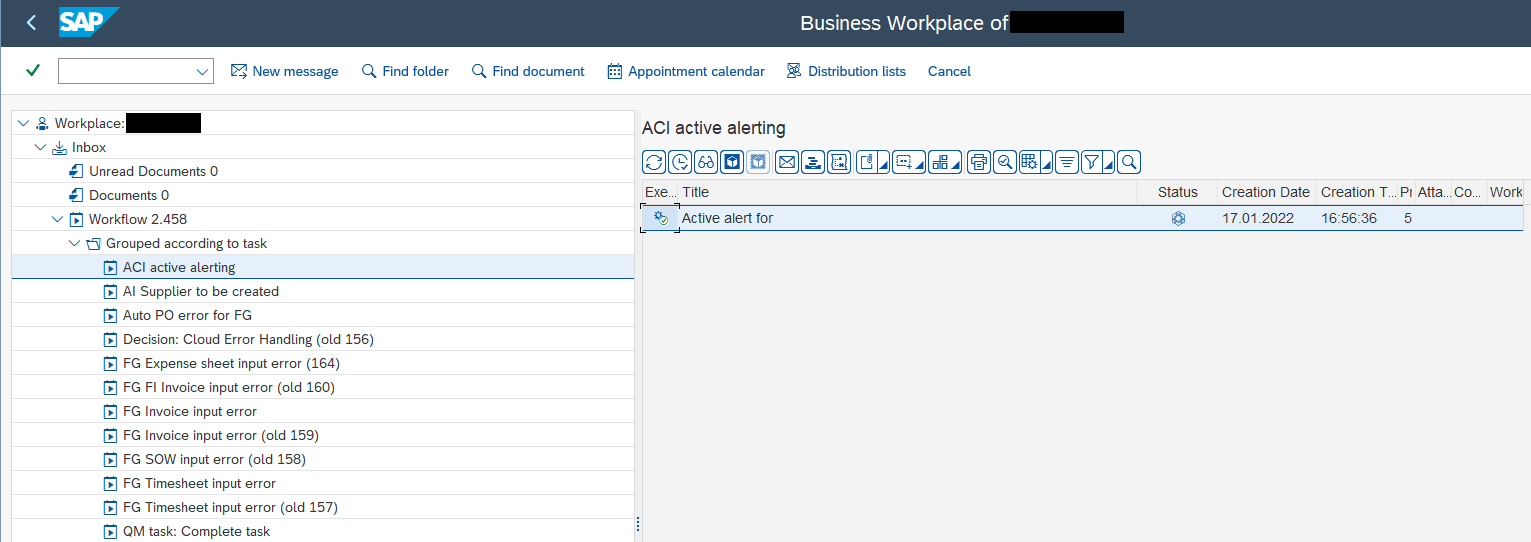
Notifications are all collected in one area in the Business Workplace:
- Switch to Business Workplace
- Go to Inbox
- Select Workflow:
- Go to Grouped according to task
- Select ACI active alerting
Function modules
Two RFC function modules return the error rates, so you can feed a custom monitoring system if needed – one calculates rates at the connection level, the other at the object level.
- Function Group:
/ASADEV/ACI_A_ALERTING- Function Module:
/ASADEV/ACI_THRESHOLD_CAL_CONN - Function Module:
/ASADEV/ACI_THRESHOLD_CAL_OBJ
- Function Module: