IDoc messaging
Overview
IDoc messages have been the gold standard of reliable SAP-to-SAP communication for many years in SAP ERP, and are still strategic and relevant for SAP S/4HANA – ASAPIO Integration Add-on now allows you to use all your SAP standard and custom IDocs in today’s heterogeneous IT landscapes and for event-driven architecture – code-less!
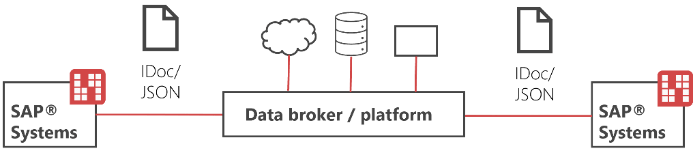
- On-the-fly IDoc conversion to JSON-based messages, bidirectional
- for SAP-to-SAP connectivity via data brokers and platforms
- for SAP-to-any connectivity, using IDocs as a proven and reliable interface
Send IDocs as outbound JSON message
Create Logical System
Explanation:
Logical systems define unique identifiers for SAP systems that exchange IDocs. “LOCAL” is used to represent the current system. Creating a logical system ensures that IDocs can be correctly routed to and from this system.
Steps:
- Transaction: SALE
- Select the created Connection
- Go to section Basic Settings → Define Logical System
- Add New Entry and specify:
- Log.System: Name has to be “LOCAL”
- Name: choose a description
Create Customer Distribution Model
(Optional – Required for Outbound IDocs only)
Explanation:
A distribution model controls which systems (logical systems) will receive outbound IDocs for specific message types. Without this model, outbound messages cannot be sent correctly.
Steps:
- Transaction: BD64
- Create Model View and specify:
- Sender: Sending client
- Recipients: Logical system (LOCAL)
- Add message type as required (e.g., MATMAS)
Create IDoc Port
(Optional – Required for Outbound IDocs only)
Explanation:
IDoc ports define the technical connection and function module to be used when sending IDocs. They allow the system to route outbound IDocs to the correct interface.
Steps:
- Transaction: WE21
- Select the created Connection
- Go to section ABAP-PI
- Add New Entry and specify:
- Port: choose a name (e.g., ACI_IDOC)
- Description: choose a description
- Function module: /ASADEV/ACI_IDOC_PORT_TRIGGER

Create Partner profiles
Explanation:
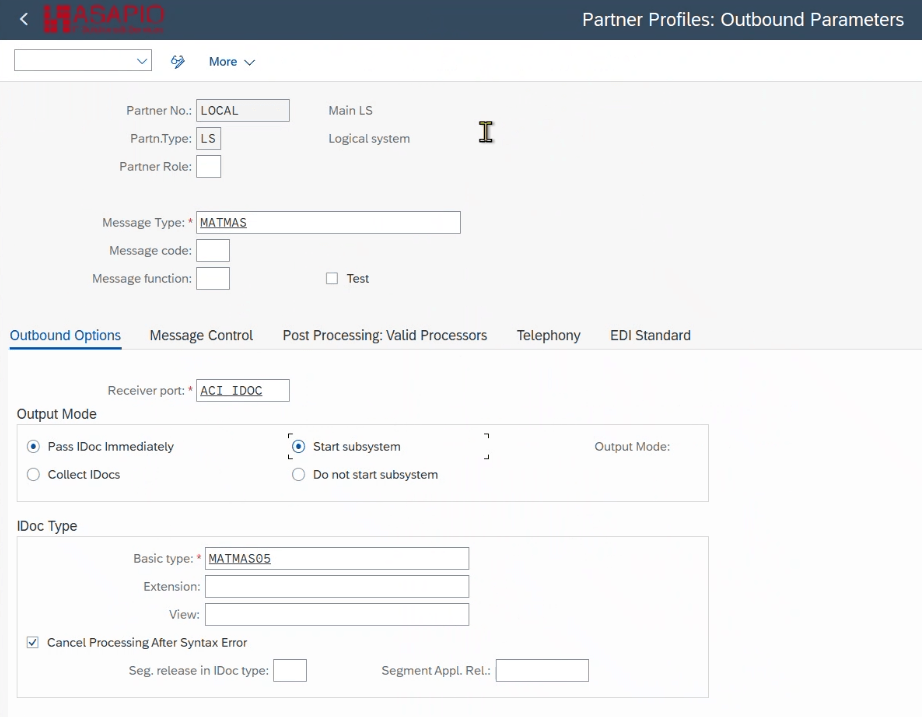
Partner profiles define how IDocs are received or sent for each logical system. LOCAL is used for the current system, and it stores inbound and outbound settings including message types and processing codes.
- Transaction: WE20
- Create a new partner profile:
- Partner Type: LS
- Partner Number: LOCAL.
- Add a new entry to Outbound parameters:
- Message Type: MATMAS
- Receiver port: ACI_IDOC
- Basic Type: MATMAS05
Create Outbound Object
Explanation:
Outbound objects define the data to extract from SAP and convert into JSON messages. This enables IDocs to be published to brokers automatically as JSON.
Note:
In the example below, we want to trigger an outbound message for SAP material master IDocs (IDoc name “MATMAS”), convert the IDoc payload to JSON and send it to an event broker instance.
- Transaction: SPRO
- Goto ASAPIO Cloud Integrator → Connection and Replication Object Customizing
- Or go directly to transaction: /ASADEV/ACI_SETTINGS
- Select the created Connection
- Go to section Outbound Objects
- Add New Entry and specify:
- Object: name of the outbound configuration
- Extraction Func. Module: /ASADEV/ACI_GEN_VIEW_EXTRACTOR
- Message Type: Specific message type (Example: Z_SAP_EM_MATMAS, create message type in transaction WE81 and activate change pointer in transaction BD50)
- Load Type: Incremental Load
- Trace: activate for testing purposes
- Extraction view name: EDID4
- Formatting Function: /ASADEV/ACI_GEN_IDOC_FORMATTER
Data extraction will be carried on by a generic extractor (/ASADEV/ACI_GEN_VIEW_EXTRACTOR) with message type Z_SAP_EM_MATMAS. The generic extractor reads and extracts the data contained in the view EDID4, which has the information related to the IDOCs.
Example configuration:
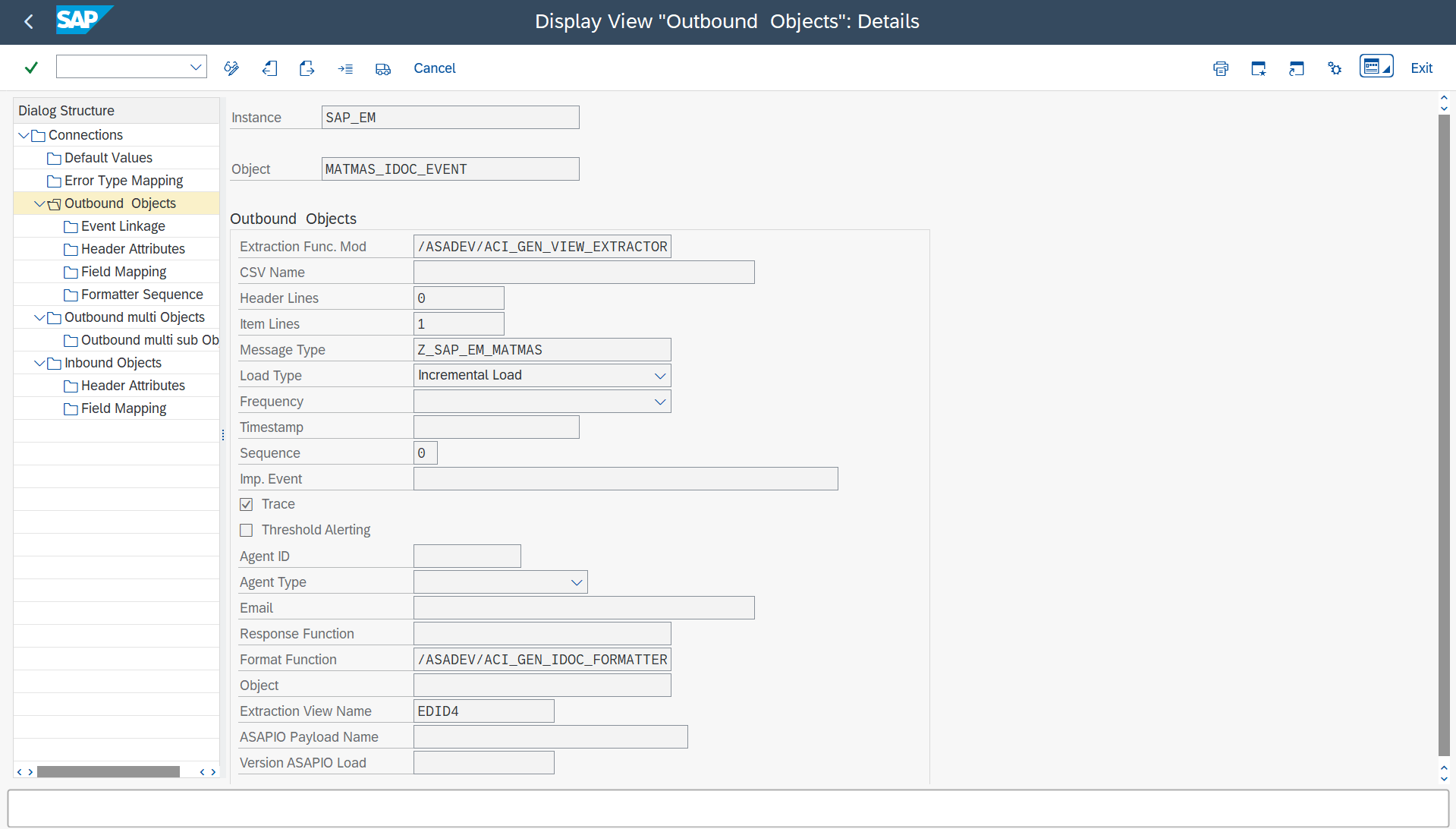
Data extraction will be carried out by a generic extractor (/ASADEV/ACI_GEN_VIEW_EXTRACTOR) with message type Z_SAP_EM_MATMAS. The generic extractor reads and extracts the data contained in the view EDID4, which has the information related to the IDOCs.
Set up ‘Event Linkage’
Explanation:
Event linkage connects the outbound object to a Business Object event. This ensures IDocs trigger JSON messages in real time.
- Navigate to Outbound Objects → Event Linkage or use transaction SWE2.
- Add New Entry and specify:
- Object Category: BO BOR Object Type
- Object Type: /ASADEV/ID
- Event: ACI_TRIGGER_EVENT
- Receiver Function Module: /ASADEV/ACI_EVENTS_TRIGGER
- Linkage Activated: tick the checkbox
- Check Function Module: /ASADEV/ACI_EVENTS_CHECK
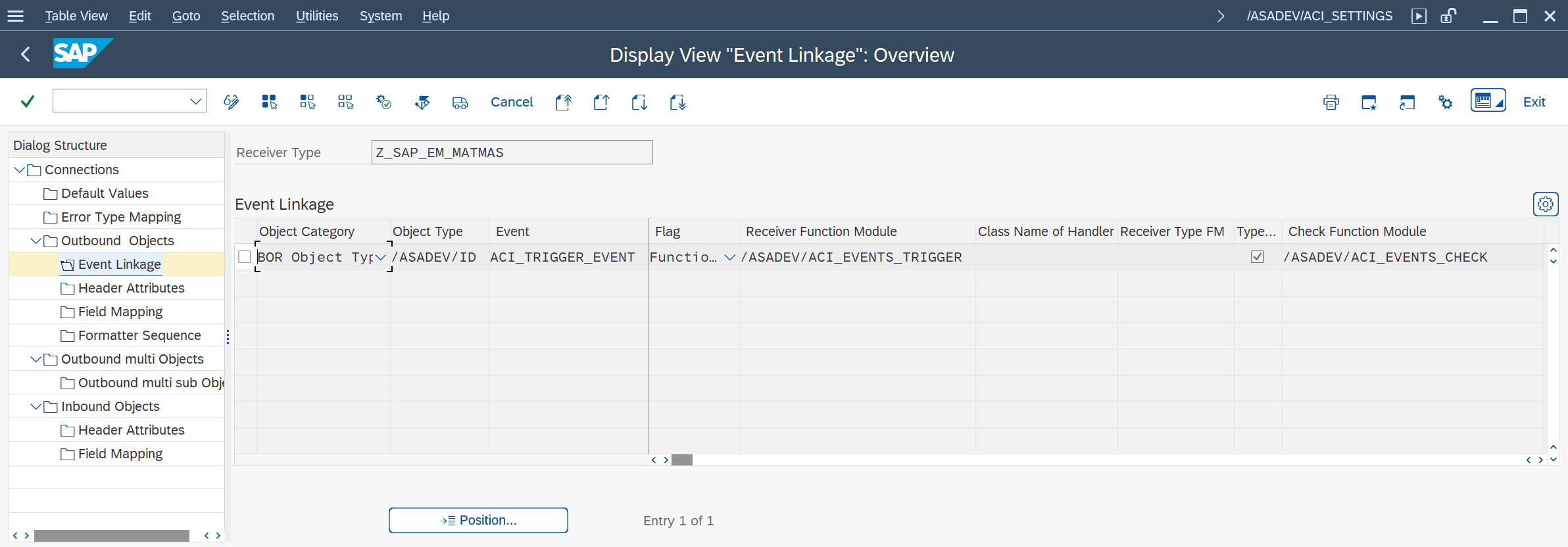
The BOR object /ASADEV/ID and its event ACI_TRIGGER_EVENT are part of the ASAPIO Integration Add-on framework.
-
BOR Object
/ASADEV/ID:
This is a Business Object Repository (BOR) object provided by ASAPIO. It represents the generic outbound IDoc processing object that can be triggered for any IDoc message type configured in the system. It is pre-delivered with the add-on and does not require custom development. -
Event
ACI_TRIGGER_EVENT:
This event is associated with the BOR object and is triggered whenever an outbound IDoc needs to be sent as a JSON message. The event initiates the processing logic in the receiver function module/ASADEV/ACI_EVENTS_TRIGGER, which handles formatting, routing, and sending the message to the configured broker.
In short, this linkage connects the business logic event of an outbound IDoc to the ASAPIO add-on’s event-driven processing framework, ensuring that IDocs are automatically converted and sent without manual intervention.
Set-up ‘Header Attributes’
Explanation:
Header attributes specify metadata for the IDoc message, including which message type and broker topic to use.
BOR_ATTRIBUTE_MessageType with the actual message type of the IDoc you want to send (e.g. MATMAS). This will be used in the check function module to filter out IDocs that are not relevant.

Set-up ‘Header Attributes’ – General
| Header attribute | Header attribute value |
| BOR_ATTRIBUTE_MessageType | Select single IDoc type by message type (e.g. “MATMAS”) |
Set-up ‘Header Attributes’ – Azure
| Header attribute | Header attribute value |
| AZURE_TOPIC | Topic/Queue (e.g., “/my_topic”) |
Set-up ‘Header Attributes’ – Confluent/Kafka
| Header attribute | Header attribute value |
| KAFKA_TOPIC | Topic/Queue (e.g., “sap_demo.matmas”) |
Set-up ‘Header Attributes’ – Solace
| Header attribute | Header attribute value |
| SOLACE_TOPIC | Topic/Queue |
| SOLACE_CALL_METHOD | POST |
| SOLACE_CONT_TYPE | text/plain |
| SOLACE_DELIV_MODE | Persistent |
Set-up ‘Header Attributes’ – SAP-EM
| Header attribute | Header attribute value |
| SAP_EM_TOPIC | Topic/Queue (e.g. /myqueue) |
| SAP_EM_CALL_METHOD | POST |
| SAP_EM_CONT_TYPE | application/json |
| SAP_EM_QOS | 0 |
Test the outbound IDoc event creation
Note:
Message type should be MATMAS in our example (screenshot shows ARTMAS because it’s a retail system)
Start transaction BD10 to test the described formatter:

Results can be shown in transaction /ASADEV/ACI_MONITOR.
Receive IDocs from inbound JSON message
Note:
In the example below, we want to receive an inbound message for SAP material object from an event broker, which will be a JSON format. The JSON payload will be converted into an IDoc (IDoc name “MATMAS”).
Create Partner Profile
Explanation:
Partner profiles define inbound processing rules, including which process code to trigger for incoming JSON messages.
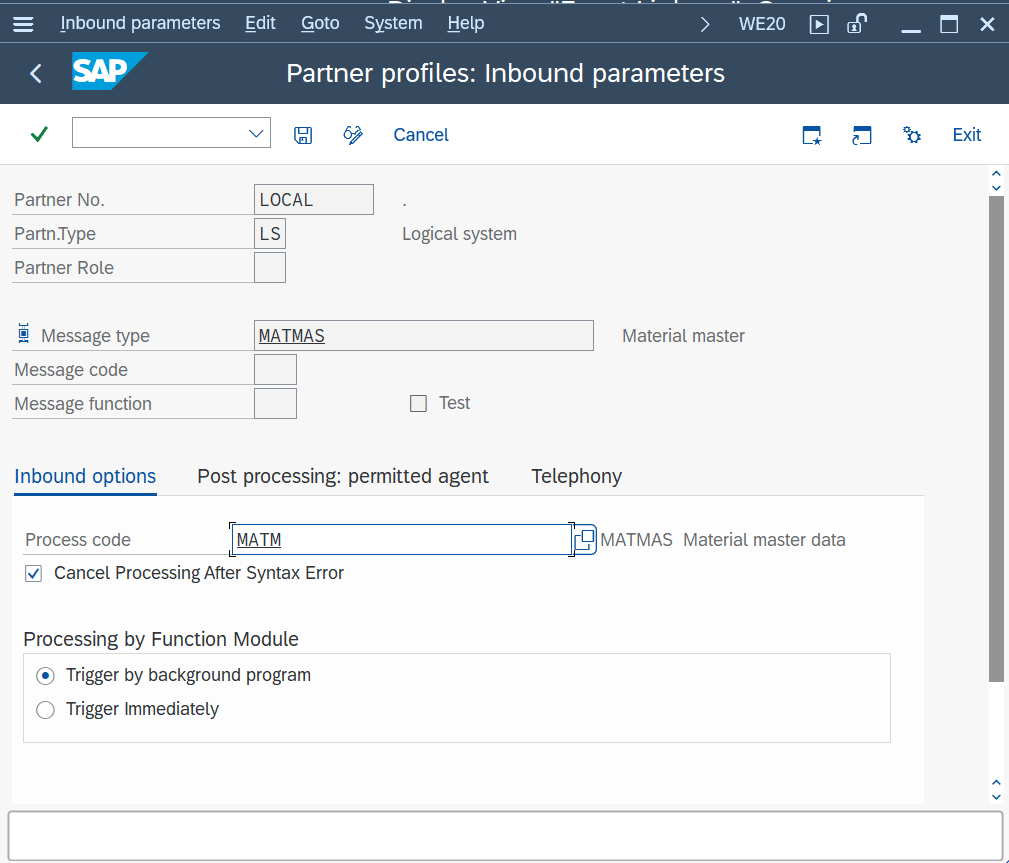
- Transaction: WE20
- Open folder: Partner Type LS
- Select your Partner No.: LOCAL
- Go to section Inbound parameters.
- Add New Entry and specify:
- Message type: MATMAS
- Process code: MATM
- Message Type: the created message type (Example: MATMAS)
Create Inbound Object
Explanation:
Inbound objects define which JSON messages to process and convert into IDocs.
- Transaction: SPRO
- Go to ASAPIO Cloud Integrator – Connection and Replication Object Customizing
- Or go directly to transaction: /ASADEV/ACI_SETTINGS
- Select the created Connection
- Go to section Inbound Objects
- Add New Entry and specify:
- Object: name of the inbound configuration
- Extraction Func. Module: /ASADEV/ACI_JSON_TO_IDOC
- Message Type: the created message type (Example: MATMAS)
- Trace: activate for testing purposes
Example configuration:

Data extraction will be carried on by a generic extractor (/ASADEV/ACI_JSON_TO_IDOC) with message type MATMAS. The generic extractor reads and extracts the data into 1 to multiple IDOCs.
Set-up ‘Header Attributes’
In addition, header attributes of message type MATMAS are filled with the topics (depending on your connector):
Set-up ‘Header Attributes’ – Azure
| Header attribute | Header attribute value |
| AZURE_QUEUE_NAME | Topic/Queue (e.g. “myqueue”) |
| AZURE_PULL_DURATION | 3 |
| AZURE_PULL_WAIT | 1 |
Set-up ‘Header Attributes’ – Confluent/Kafka
| Header attribute | Header attribute value |
| KAFKA_DOWNLOAD_ACCEPT | application/vnd.kafka.json.v2+json |
| KAFKA_DOWNLOAD_TOPIC | Topic/Queue (e.g., “sap_demo.matmas”) |
| KAFKA_GROUPNAME | asapiogroup |
| KAFKA_INSTANCE_NAME | asapio_matmas_consumer |
| KAFKA_MAX_BYTES | 1000000 |
| KAFKA_TIMEOUT | 1000 |

JSON schema for IDoc creation
When an Inbound message is received from the broker, it will usually be a JSON format.
The ASAPIO Integration Add-on will create an IDoc out of the JSON file.
In order to see which fields are needed for the IDoc creation go to transaction WE60. There you will find a documentation and XML schema with the fields that are available for the according IDoc.
Example MATMAS05:
- Transaction: WE60
- Basic type: MATMAS05
- Select More → Documentation → XML Schema


The WE60 documentation will provide you the available fields in an XML format, which can be part of your JSON file, that you want to send Inbound.

Note:
Watch the mandatory fields of the JSON header highlighted as seen below.
“EDI_DC40”: [
{
“TABNAM”: “”,
“MANDT”: “”,
“DOCNUM”: “”,
“DOCREL”: “”,
“STATUS”: “”,
“DIRECT”: “”,
“OUTMOD”: “”,
“IDOCTYP”: “MATMAS05”,
“MESTYP”: “MATMAS”,
“SNDPOR”: “ACI_TEST”,
“SNDPRT”: “LS”,
“SNDPRN”: “LOCAL”,
“RCVPOR”: “”,
“RCVPRT”: “LS”,
“RCVPRN”: “”,
“CREDAT”: “”,
“CRETIM”: “”,
“SERIAL”: “”
}
],
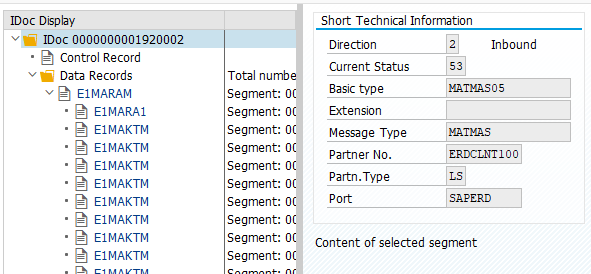
Test the inbound IDoc creation
Explanation:
Testing inbound IDoc creation verifies that JSON messages received from the broker are correctly converted into SAP IDocs. ASAPIO supports two modes for inbound messages, depending on your broker: PUSH-Based and PULL-Based.
PUSH-Based:
Explanation:
In the PUSH mode, the broker actively sends messages to SAP as soon as they are available. SAP does not need to poll the broker; instead, the event is triggered automatically by the broker, and ASAPIO receives the JSON payload in real time. The inbound function module /ASADEV/ACI_JSON_TO_IDOC processes the payload and creates the corresponding IDoc.
Steps:
- Activate the service
asadevin transaction SICF. - Push the message to the URL of the
asadevservice, combining the Inbound Object Instance and Object name:
https://<saphost>:<port>/asadev/<Instance>/<Object>
PULL-Based
Explanation:
In the PULL mode, SAP periodically polls the broker or message queue to retrieve available JSON messages. This is useful for systems that cannot receive real-time push events or for testing purposes. ASAPIO will read the messages during the scheduled pull and process them into IDocs.
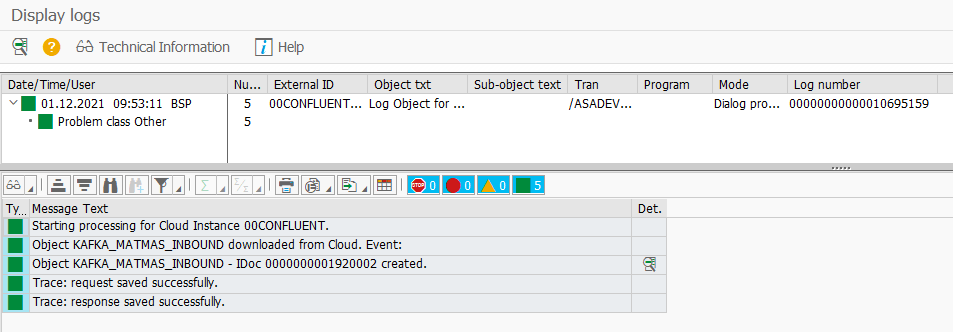
Start transaction /n/ASADEV/ACI
Choose your configured Connection and Replication Object:
-
- Connection: 00Confluent
- Replication Object: KAFKA_MATMAS_INBOUND